
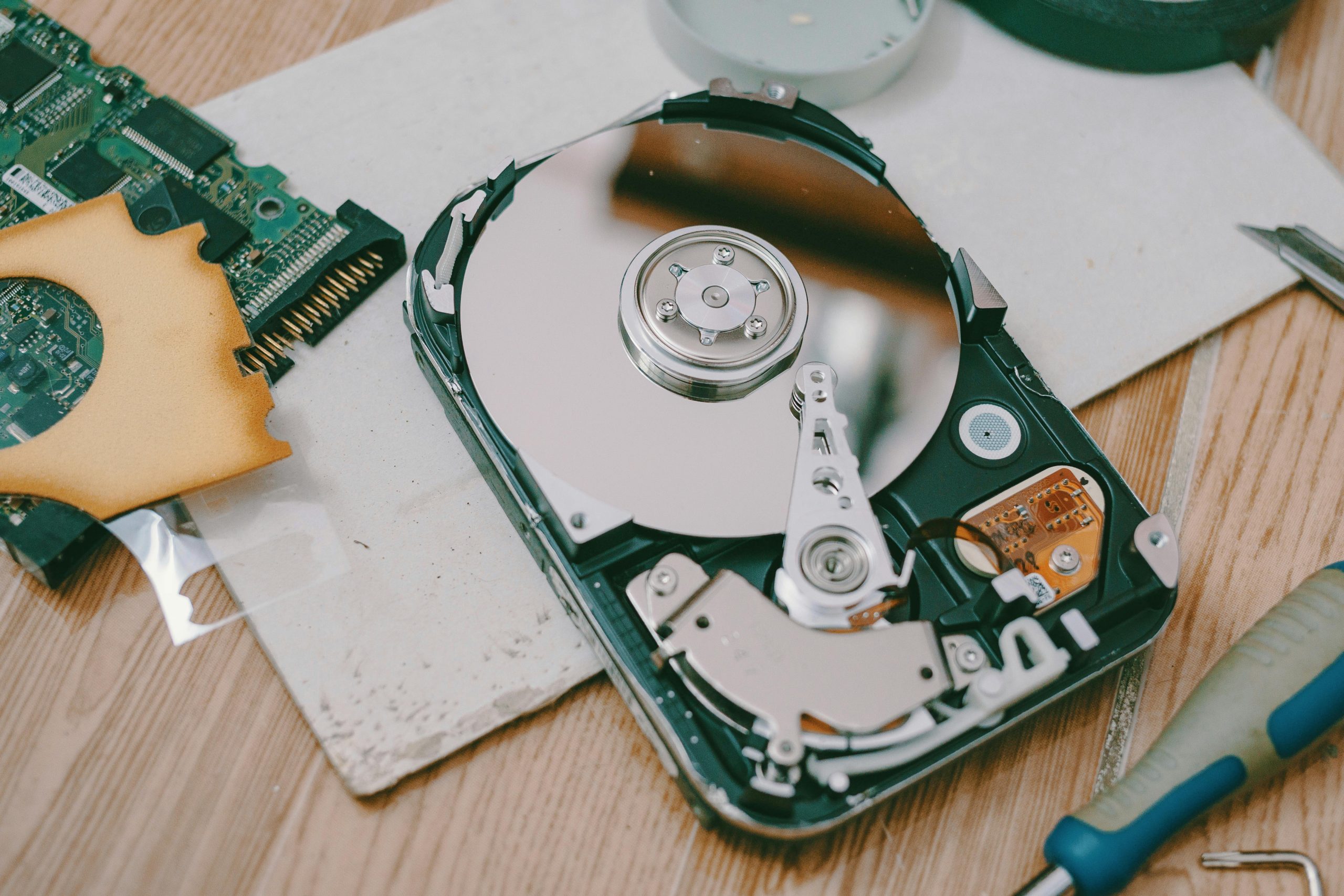
Many users look to free up disk space when their computer starts slowing down, updates stop working properly, or saving files becomes difficult. Storage tends to fill up little by little through downloads, duplicate files, temporary data, unused apps, and leftover system files. In many cases, a significant amount of space can be recovered without touching anything important.
Computer support specialists often explain that storage issues usually come from gradual buildup rather than one major mistake. Device maintenance experts also note that people often start deleting random files, which can be risky and doesn’t always solve the real problem. A more careful, organized cleanup is usually more effective and helps protect important data.
Why Low Storage Affects Computer Performance
When a drive is nearly full, the system has less room to handle temporary tasks, updates, and background processes. This can make everyday use feel slower and less reliable. Programs may take longer to open, downloads can fail, and system warnings may appear more often.
Device technicians point out that operating systems need extra working space even when you’re not actively saving files. When storage runs low, that lack of space can affect the entire system especially during updates or when multiple applications are running.
Experts generally recommend checking available storage before it becomes critical. Cleaning up early is usually easier and safer than waiting until performance issues or repeated errors begin to appear.
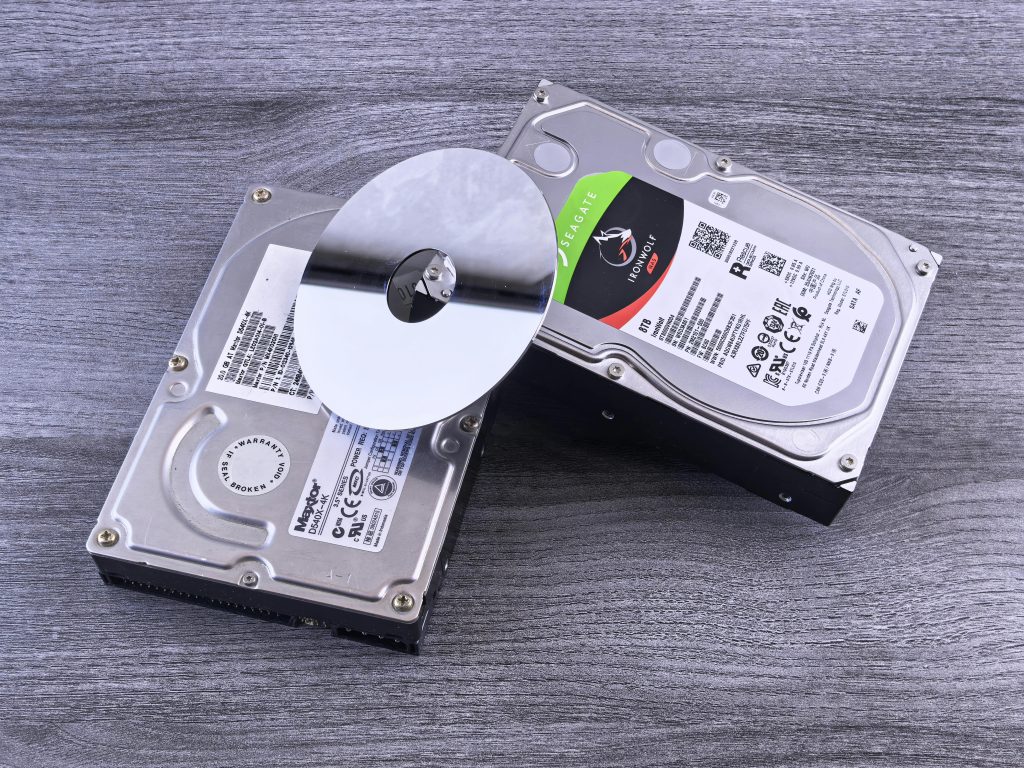 Credit: Andrey Matveev / pexels
How to Free Up Disk Space by Reviewing Large Files First
One of the quickest ways to free up disk space is to start by looking at the largest files on the system. Videos, old installers, archive folders, duplicate backups, and unused downloads often take up far more room than everyday documents.
Computer support teams usually recommend sorting files by size and reviewing the biggest ones first. This approach saves time, since removing a single large file can free more space than deleting dozens of small ones. It also makes the process more focused, helping users see exactly what’s using the most storage instead of guessing.
Experts often suggest checking common storage-heavy locations early on, such as the downloads folder, desktop, and video folders. These areas tend to collect large files that are no longer needed but often go unnoticed.
Why Temporary Files and System Leftovers Build Up
Computers regularly create temporary files to support installations, browsing, updates, and app performance. Over time, these files can build up into a surprisingly large amount of data. Because they’re created in the background, many users aren’t aware of how much space they’re using.
System maintenance specialists often point to browser caches, update leftovers, installation files, and app-generated temporary data as common sources. These files are typically only useful for a short time but can remain long after they’re no longer needed.
Experts recommend using built-in storage cleanup tools to safely remove unnecessary temporary files. This method is one of the easiest ways to recover space without risking important personal data.
 Credit: cottonbro studio / pexels
How Unused Apps Take Up More Space Than Expected
Many computers hold onto apps that haven’t been used in months. Some of these programs take up more space than expected because they include offline data, updates, extra components, or saved project files. It’s common to find editing software, games, utilities, or trial programs that no longer serve a real purpose.
Technology support professionals often suggest reviewing installed apps by both size and how often they’re used. Removing programs that are no longer needed is usually more effective than deleting random personal files. It also helps reduce clutter and may limit unnecessary background activity.
Experts often recommend taking a practical approach during app cleanup. If a program hasn’t been used in a long time and doesn’t serve a current need, it’s usually safe to remove.
Why Duplicate Files Make Storage Cleanup Harder
Duplicate files are a common source of hidden storage loss. They often appear when files are downloaded more than once, folders are moved between drives, or multiple versions of the same document, image, or video are saved with slightly different names.
Digital organization specialists note that duplicates create two problems at once—they take up space and make it harder to stay organized. Users may hesitate to delete anything because they’re unsure which version is the correct or most recent one.
Experts recommend checking common duplicate areas like downloads, desktop folders, photo libraries, and transferred backups. Careful review in these locations can free up space without risking important originals.
How Cloud Storage and External Drives Can Help Manage Disk Space
Some files need to be kept, but they don’t always need to stay on the main drive. Photos, videos, older projects, and archived records can often be moved to cloud storage or an external drive if they aren’t needed every day.
Storage management experts explain that moving files is different from deleting them. The goal is to ease pressure on the computer while still keeping files safe and accessible. This approach is especially helpful for large media collections that don’t change often.
Before removing local copies, experts recommend confirming that files have transferred correctly and can be accessed without issues. Taking a careful approach helps avoid accidental data loss.
Why the Recycle Bin and Desktop Should Be Checked Carefully
The recycle bin is easy to overlook, even though it may still contain large deleted files. The desktop can also become a hidden storage area, with documents, screenshots, downloads, and installers piling up over time.
Computer support specialists often point out that both areas can fill gradually without feeling like part of regular storage. Emptying the recycle bin after reviewing its contents and organizing desktop files into proper folders can free up space quickly.
Experts also suggest keeping the desktop limited to a few active items. A cleaner desktop not only saves space but also makes it easier to stay organized.
How Regular Reviews Help Keep Disk Space Under Control
Storage cleanup works best when it becomes a regular habit rather than a one-time fix. New files are added, apps update, and temporary data builds up in the background. Occasional cleanup helps, but consistent review makes a bigger difference over time.
Device maintenance educators often recommend checking storage every few weeks, especially after large downloads, system updates, or file transfers. These quick reviews can prevent storage from becoming critically low again.
Experts emphasize that freeing up disk space doesn’t require advanced tools. Simple habits, careful decisions, and regular checks usually have the most lasting impact.
Frequently Asked Questions
Q: What takes up the most disk space on a computer?
A: Large videos, downloads, old installers, duplicate files, temporary system data, and unused apps are among the most common storage users.
Q: Is it safe to delete temporary files?
A: In many cases, yes. Experts often recommend removing unnecessary temporary files through built-in cleanup tools.
Q: Should users delete old apps to free space?
A: Yes. Removing unused apps is often a safe and effective way to create space without touching important personal files.
Q: Can full storage make a computer slower?
A: Yes. Limited free space can affect updates, background processes, and overall system responsiveness.
Q: How often should storage be reviewed?
A: A short review every few weeks is often enough, especially after large downloads or system updates.