Credit: panumas nikhomkhai / Pexels
What signs show a router needs restarting right away
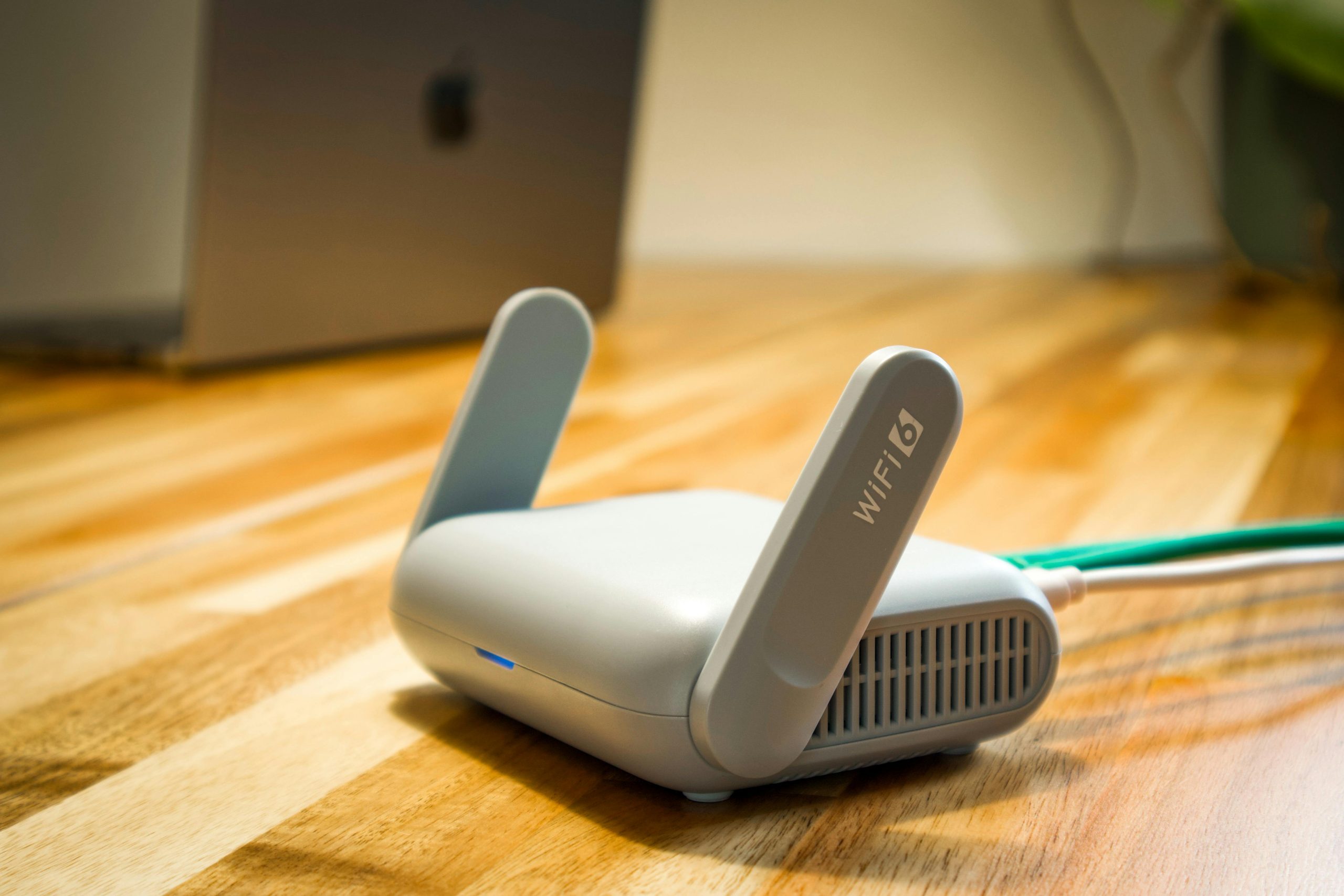
Some connection problems clearly point to a quick restart as a reasonable first step. If multiple devices lose connection at the same time, websites stop loading even though Wi-Fi still appears connected, or smart home devices go offline together, the router may be the source of the issue.
Home internet technicians often explain that these patterns usually indicate a network-wide problem rather than a single device fault. If only one phone or laptop has trouble while others work normally, the issue is likely limited to that device. But when the entire household experiences the same disruption, checking the router first makes more sense.
A simple habit is to notice how widespread the issue is. That small detail often helps decide whether restarting the router is the right first move.
How to tell the difference between a router problem and a weak signal
It’s common to assume the router is failing when the real issue is Wi-Fi coverage. Weak signal problems usually show up in specific areas—certain rooms, upstairs spaces, or spots behind thick walls, while the connection works fine closer to the router.
Wireless support specialists explain that this kind of pattern points more to placement limits than to a router malfunction. If the connection improves immediately when moving closer to the router, the signal path is likely the problem.
Testing the connection in a few different areas can make this clear. A restart might help briefly, but it won’t fix dead zones or poor placement in the long run.
Why too many connected devices can feel like a router failure
A busy network can sometimes appear to be a failing router even when the device is working as expected. Phones, laptops, TVs, gaming systems, and smart devices all compete for bandwidth. When several are streaming, downloading, or updating at once, the network can slow down noticeably.
Technology analysts often note that people restart the router in these moments because the slowdown feels sudden. In reality, the network may just be overloaded during peak use. A restart can temporarily improve performance, but the same slowdown often returns once activity picks up again.
A better approach is to check how many devices are active during the slowdown. If heavy usage is the cause, the solution usually involves managing demand or upgrading capacity rather than relying on repeated restarts.
Credit: Pascal 📷 / Pexels
How Status Lights and Timing Can Help Fix Internet Connection Issues
Router status lights often offer clues about what is happening. A normal-looking power light with unusual internet or Wi-Fi indicators may suggest the problem is not the same as a complete power failure. The timing of the issue also matters. If slowdowns happen only in the evening, the cause may be demand or congestion rather than the router itself.
Network support teams explain that random one-time failures may respond well to a restart, while repeated problems at the same hour each day often suggest a pattern such as device load, signal competition, or provider congestion. Paying attention to timing helps users avoid relying on the same quick fix without understanding the cause.
Experts recommend watching whether the issue is sudden and isolated or repeated and predictable. Patterns usually point to a bigger fix than a simple restart.
Why Frequent Restarting Suggests a Bigger Home Network Fix
If a household feels that the router needs restarting every few days, the issue may be larger than temporary software strain. Frequent resets can suggest aging hardware, overheating, outdated firmware, unstable placement, weak signal in key rooms, or chronic overload from too many active devices.
Device specialists explain that a router should not depend on constant restarting to stay useful. A healthy home network may need the occasional reset, but daily or weekly restarts are usually a sign that something else needs attention. Repeating the same quick fix often hides the real cause instead of solving it.
Experts recommend moving from restart-only thinking to broader checks when the problem becomes routine. Looking at placement, updates, device load, and time-of-day patterns often gives a clearer answer.
How Restart Router Tips Fit Into Better Troubleshooting
Restart router tips are still useful when they are part of a smarter process. Users can note whether all devices were affected, whether the issue improved after a restart, how long that improvement lasted, and whether the problem returned under the same conditions later. This makes the restart a test rather than just a habit.
Home network educators explain that troubleshooting works best when users change one factor at a time. Restarting first may be reasonable, but the next step should be checking placement, signal strength, active devices, and software status if the issue returns. Small observations help separate short-term failure from long-term weakness.
Experts also suggest checking for firmware updates and verifying that the router is in an open, ventilated location. Sometimes the bigger fix is maintenance, not replacement.
When a Bigger Home Network Fix Is More Likely
A larger fix becomes more likely when the same problems keep returning, when certain rooms are always unreliable, or when the network slows heavily during predictable busy periods. In those cases, the household may be dealing with signal limitations, local congestion, poor placement, or aging equipment rather than a momentary glitch.
Network professionals explain that the key question is whether restarting changes the situation meaningfully for a useful period of time. If it does not, the issue probably sits elsewhere in the network setup. Bigger home Wi-Fi problems usually reveal themselves through patterns, not only through isolated failures.
Experts say the most helpful habit is to use a restart as a first check, not as the only answer. Understanding the difference saves time and makes future internet problems easier to solve.
Frequently Asked Questions
Q: How can users tell if a router needs restarting?
A: If several devices lose connection at once, pages stop loading across the home, or the router behaves oddly for no clear reason, a restart is often a reasonable first check.
Q: Does restarting a router fix every internet problem?
A: No. It can help with temporary glitches, but weak signal, device overload, poor placement, or provider issues often need a different fix.
Q: Why does the internet work near the router but not in other rooms?
A: That pattern usually points to coverage limits, walls, or placement problems rather than a router that only needs a restart.
Q: Is it normal to restart a router often?
A: Occasional restarting is normal, but frequent restarting usually suggests a bigger issue such as overload, heat, firmware problems, or aging hardware.
Q: What should users check after restarting the router?
A: Experts recommend checking whether all devices improved, how long the improvement lasted, and whether the problem returns at the same time or in the same rooms.
Key Takeaway
Knowing whether a router needs restarting or whether the home network needs a bigger fix can save time and reduce repeated frustration. Experts recommend using a restart as a first check when the whole network becomes unstable, but looking deeper when the same problems return often or affect only certain rooms and times of day. Better troubleshooting usually begins with one simple question: is this a short glitch, or is the pattern pointing to something larger?
[INTERNAL LINKING SUGGESTIONS]
– How to Place a Wi-Fi Router for Better Signal and Fewer Dead Zones
– What Causes Weak Wi-Fi Signal at Home and How to Improve It
– How to Secure Home Wi-Fi With Better Router Settings and Simple Habits