 Credit: Brett Jordan / Pexels
Credit: studio sason / Pexels
Why Widgets Should Be Chosen Carefully
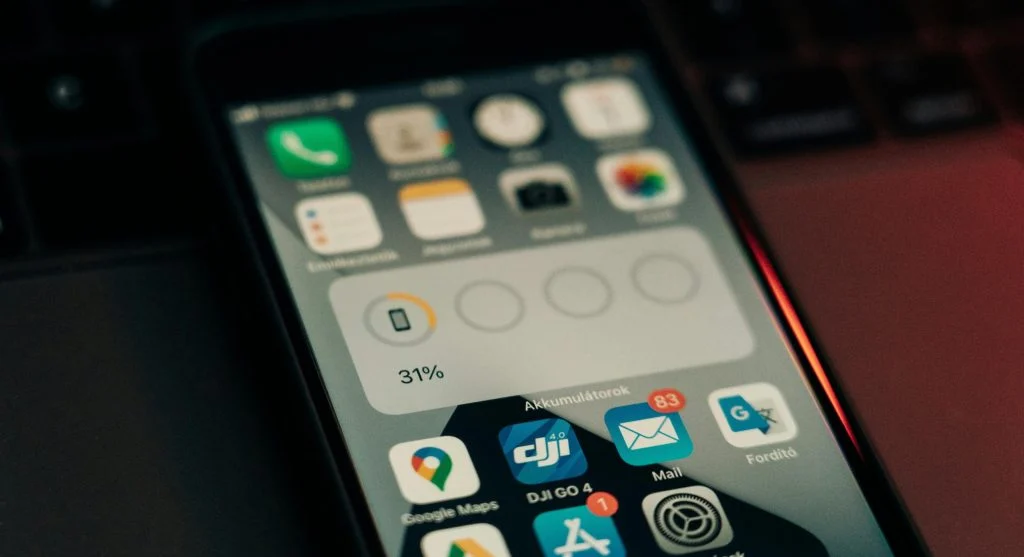
Widgets can be useful, but they also take up space quickly. Weather, calendar, tasks, music controls, and battery information may all seem helpful, yet too many widgets can crowd the screen and reduce room for important apps.
Mobile support teams note that widgets work best when they show information users actually check often without needing to open an app. A calendar widget may be useful for someone with a busy schedule, while a large decorative widget may add visual weight without helping daily tasks.
Experts recommend keeping only one or two widgets that provide genuine value. A widget should earn its place by reducing steps, not by filling space.
How App Organization Ideas Reduce Unnecessary Distraction
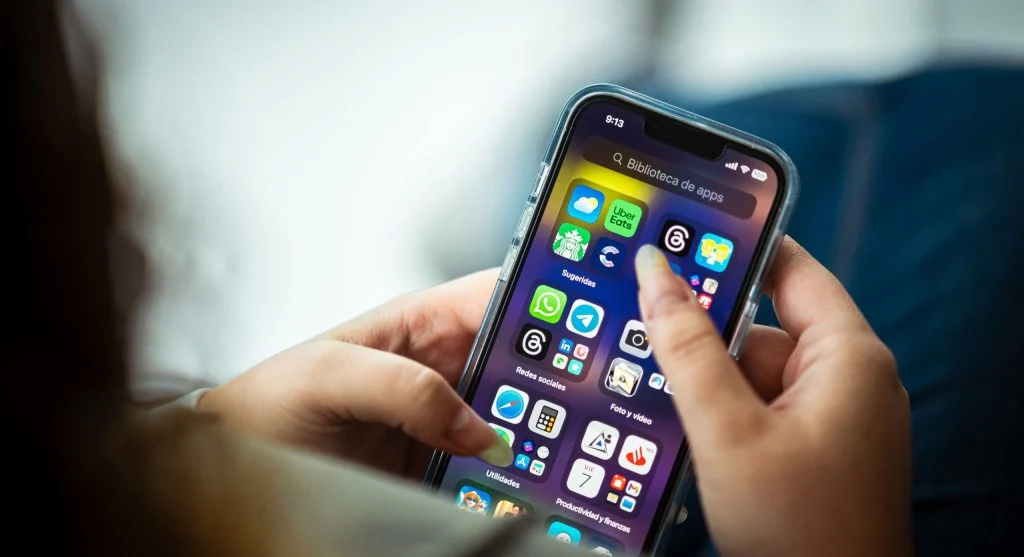
Some apps create more distraction than value when they stay on the first page. Social feeds, games, shopping tools, and entertainment apps may draw attention every time the screen opens, even when the user intended to check something else. Placement affects behavior more than many people realize.
Digital wellness researchers explain that moving low-priority or highly distracting apps away from the first screen can reduce reflexive opening. The app still exists, but it no longer sits in the most visible position. This small change often helps simplify phone use without requiring the user to uninstall anything.
Experts recommend placing the most distracting apps in folders, on later pages, or off the home screen if the phone allows app library access. Distance can improve control.
Why Wallpapers and Visual Design Affect Simpler Phone Use
Wallpaper choice may seem minor, but it affects how easy icons and widgets are to read. Busy or high-contrast backgrounds can make the home screen feel more cluttered than it actually is. A cleaner background usually makes the layout easier to scan at a glance.
Usability specialists explain that visual simplicity supports faster recognition. When the background is calm and the layout is balanced, users can find important apps more easily. This is especially helpful on phones already carrying many icons or notifications.
Experts recommend choosing a background that keeps app labels readable and reduces visual competition. Better design often supports better habits.
How Regular Small Reviews Keep the Home Screen Organized
Even a strong layout becomes messy over time if new apps are added without review. Trial downloads, temporary tools, updates, and new habits can slowly crowd the screen again. That is why a short cleanup routine helps maintain progress.
Mobile organization educators recommend checking the home screen every few weeks and asking three simple questions: Which apps are still used every day, which apps can move into folders, and which apps do not need home screen space at all? This keeps the layout aligned with real habits rather than old ones.
Experts explain that the best way to organize your phone home screen is not to do one perfect redesign and forget it. It is to keep the screen practical as daily routines change.
Frequently Asked Questions
Q: What apps should stay on the home screen?
A: Experts usually recommend keeping the apps used most often each day, such as messages, phone, maps, calendar, camera, or notes.
Q: Are folders good for organizing a phone?
A: Yes. Folders help when they group related apps clearly, but they work best when they are not overcrowded.
Q: Should all apps stay on the first page?
A: No. The first page usually works best when reserved for daily-use apps and essential tools.
Q: Do widgets make a phone more useful?
A: They can, but only if they show information that saves time regularly. Too many widgets can make the screen feel crowded.
Q: How often should the home screen be reviewed?
A: A short review every few weeks is often enough to keep the layout clear and useful.
Key Takeaway
Learning how to organize your phone home screen can make daily phone use faster, calmer, and easier to manage without deleting useful apps. Experts recommend starting with daily priorities, using folders carefully, limiting widgets, and moving distracting apps away from the first screen. A simpler layout supports better phone habits because the screen becomes a tool for action instead of a wall of clutter.
[INTERNAL LINKING SUGGESTIONS]
– How to Reduce Phone Notifications So Your Screen Feels Less Overwhelming
– How to Free Up Phone Storage Without Deleting Important Files
– How to Check Battery Health on a Phone and Know When It Matters