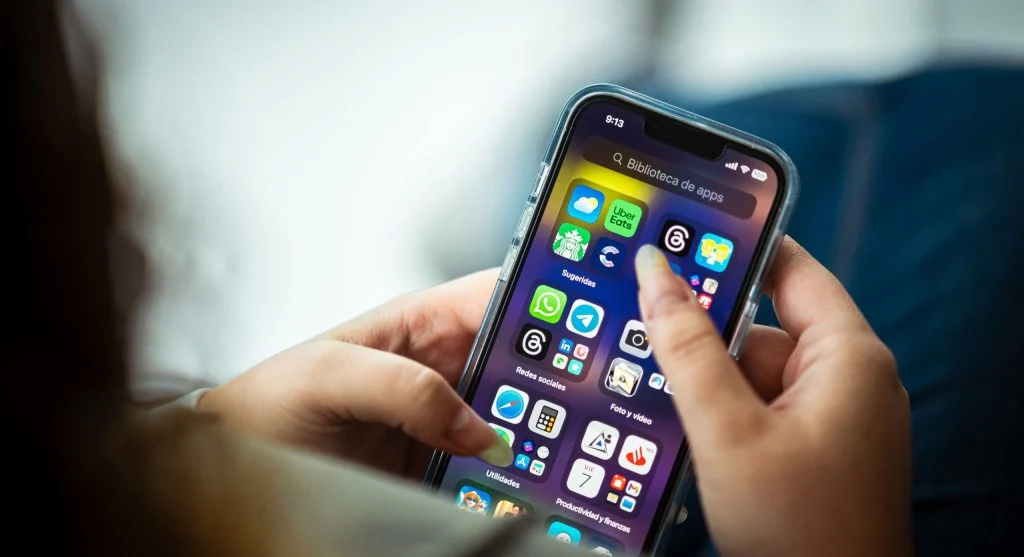
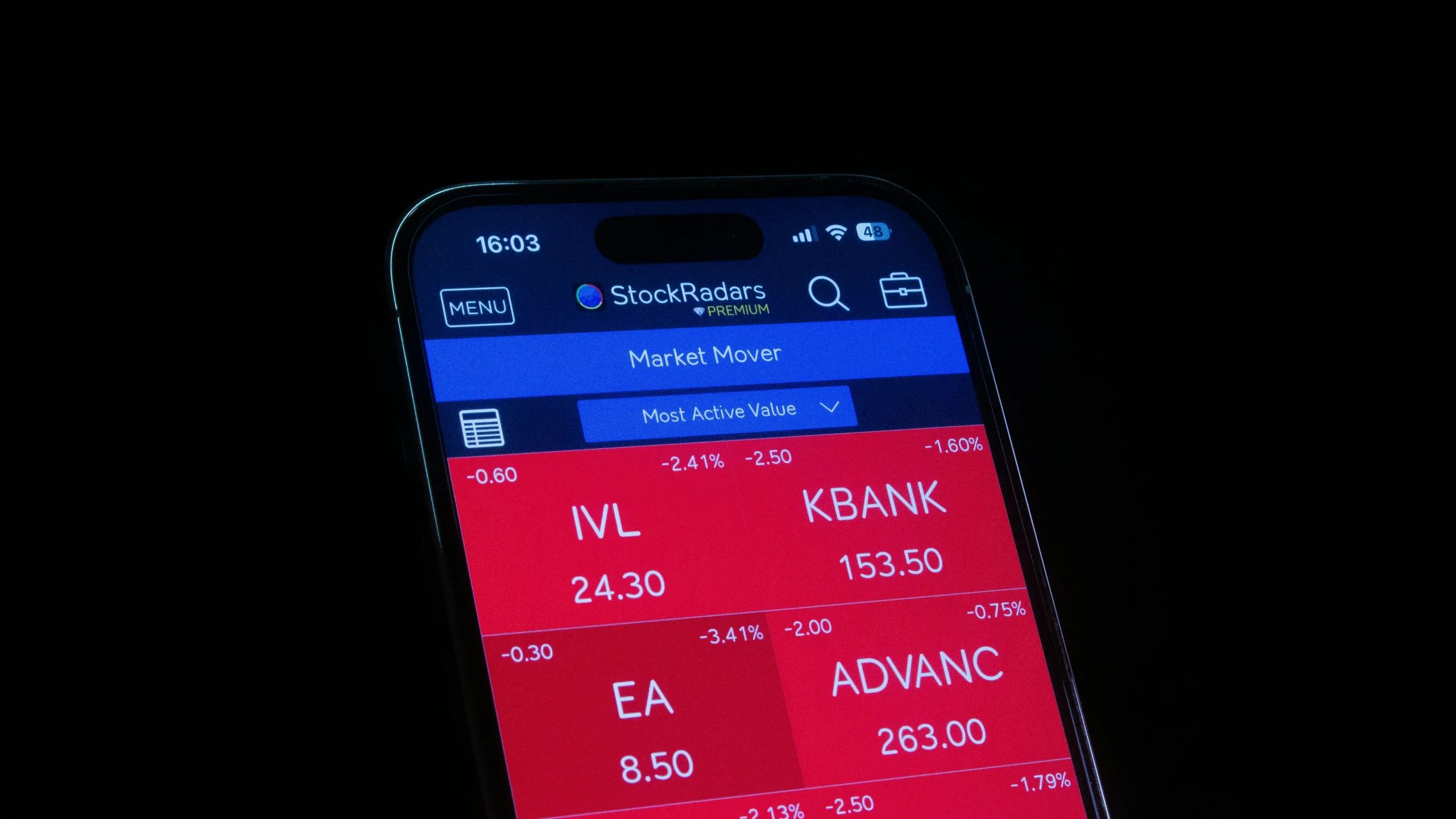
Many users want to check which apps use the most mobile data because plans can feel difficult to manage when data runs out faster than expected. Streaming, background refresh, social feeds, cloud backups, and automatic updates can all quietly use data throughout the day. Without reviewing usage, it’s easy to blame the plan instead of the apps and settings driving the highest consumption.
Mobile device specialists often explain that data issues usually come from a small number of heavy apps rather than all apps equally. Phone support analysts also note that users save the most data when they first review usage patterns and then adjust only the apps causing the biggest drain. A few simple checks can make mobile data usage much easier to understand and control.
Why It Helps to Check Which Apps Use the Most Mobile Data First
The fastest way to understand a data problem is to see where the data is actually going. Many users assume texting, email, or basic browsing use the most data, but heavier usage usually comes from video platforms, cloud storage apps, social media feeds, or background syncing.
Device support professionals also point out that a phone may appear idle while still using data in the background. A photo app might upload files, a social app may preload videos, or a music app may stream higher-quality audio than expected. These small actions can add up quickly over time.
Experts recommend reviewing app data usage before changing multiple settings at once. The most effective solution usually starts with identifying and managing the apps already using the largest share of data.
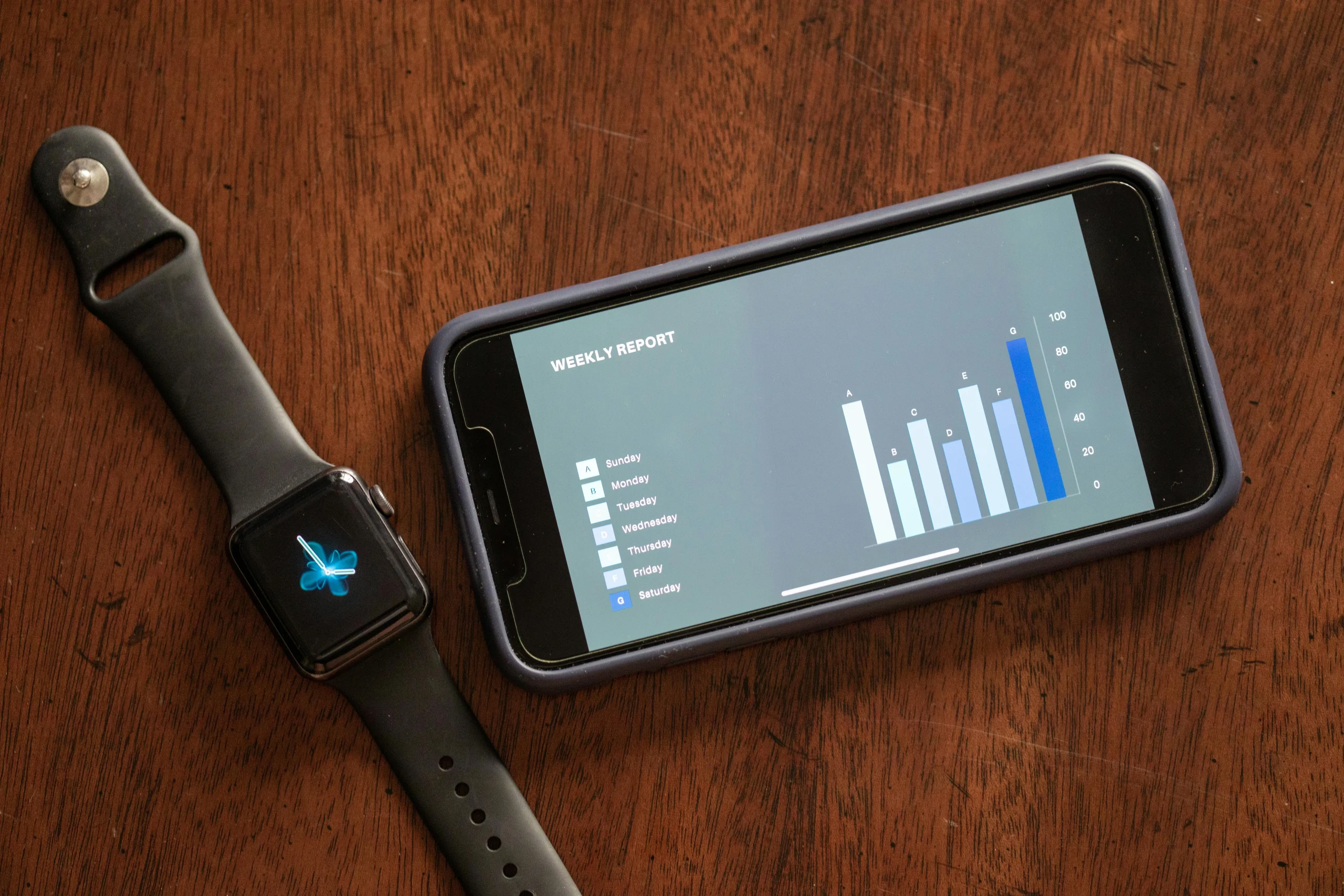
Credit: RDNE Stock project / Pexels
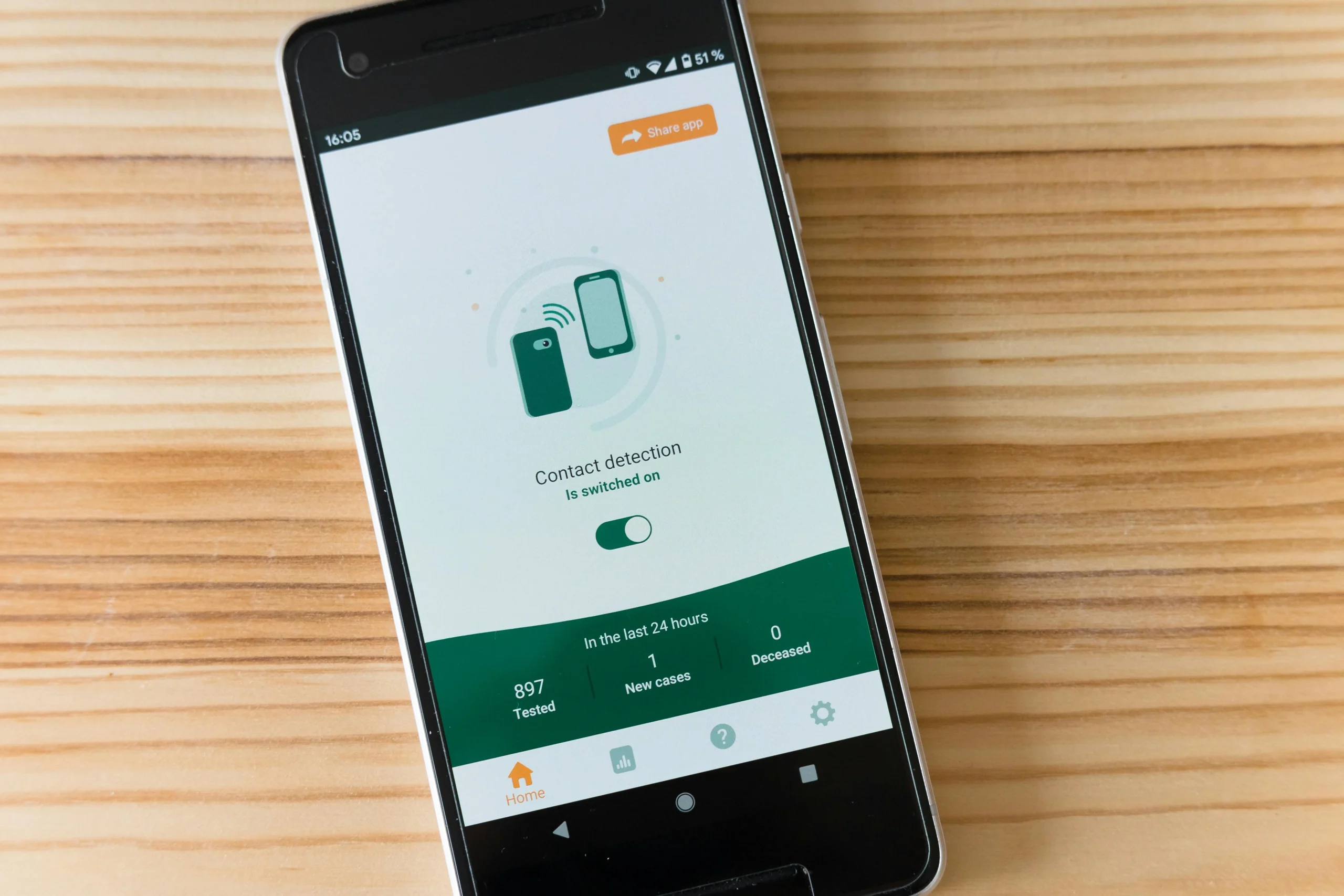
Credit: Markus Winkler / Pexels
Why Cloud Backup and Photo Uploads Need Careful Review
Photo and cloud storage services can become major data users when they upload files over the mobile network instead of waiting for Wi-Fi. A single travel day, event, or large video recording session can create a surprising amount of data use if backup settings are too open.
Cloud service specialists explain that many users want automatic protection for photos and files, but they may not realize the backup happens beyond Wi-Fi unless the setting is restricted. This is especially important for high-resolution photos and longer videos, which use far more data than text-based apps.
Experts recommend checking upload rules for cloud apps and choosing Wi-Fi-only backup where practical. That one setting can make a large difference in monthly mobile data usage.
How Streaming Quality Settings Affect Data Limits
Music, video, podcasts, and live streams do not all use the same amount of data. Higher quality settings usually mean larger files and more bandwidth. Many services default to strong quality for convenience, even when the user would prefer to save data away from Wi-Fi.
Digital media researchers explain that users often focus on app time but overlook quality settings. Two people may use the same streaming app for a similar amount of time, yet one may consume much more data because of higher video or audio quality. Small setting differences can have a large monthly effect.
Experts recommend reviewing playback settings for mobile use separately from Wi-Fi use whenever the app allows it. Lower mobile quality can preserve data without removing the service entirely.
Why Data Saver Tools Work Best With App Reviews
Many phones now include a data saver or low-data mode that limits background use and helps control app behavior while away from Wi-Fi. These tools are useful, but they work best when combined with a closer review of the apps causing the highest usage in the first place.
Phone support educators explain that a blanket data saver mode may help immediately, but a better long-term result usually comes from understanding which apps are creating the most pressure. That way, users can decide which services deserve full access and which ones can be restricted more strongly.
Experts recommend using built-in data saver tools as support, not as the only strategy. Clear app-by-app review usually creates the most balanced outcome.
How Regular Checks Help Keep Phone Data Settings Under Control
App behavior changes over time. Updates can add more autoplay, richer feeds, higher media quality, or expanded syncing. That means data use that felt manageable last month may look different now. A short review helps users spot those changes before the billing cycle becomes frustrating.
Mobile network specialists recommend checking app usage once every few weeks or whenever a warning appears earlier than expected. Users do not need to review every setting every day, but a regular look at the highest data apps can prevent surprises and help keep the phone aligned with the plan limits.
Experts say the best way to check which apps use the most mobile data is to make it a simple habit. Once the heaviest apps are clear, reducing wasted usage becomes much easier.
Frequently Asked Questions
Q: How can users check which apps use the most mobile data?
A: Most phones include a mobile or cellular data section in settings that shows total usage and breaks it down by app.
Q: Which apps usually use the most mobile data?
A: Video apps, social platforms, cloud storage tools, streaming services, and media-heavy apps are often the biggest users.
Q: Can apps use mobile data in the background?
A: Yes. Many apps refresh, sync, upload, or preload content even when they are not open on screen.
Q: Do photo backups use a lot of data?
A: They can, especially when high-resolution photos or videos are uploaded over the mobile network instead of Wi-Fi.
Q: How often should data usage be reviewed?
A: A short review every few weeks, or whenever usage feels unusually high, is often enough to keep it under better control.
Key Takeaway
Learning how to check which apps use the most mobile data helps users understand whether a phone plan is being stretched by streaming, social media, cloud uploads, or quiet background syncing. Experts recommend starting with the data usage list in settings, then reviewing background access, media quality, and backup rules for the heaviest apps. Better phone data settings usually come from a few targeted changes rather than from cutting everything at once.