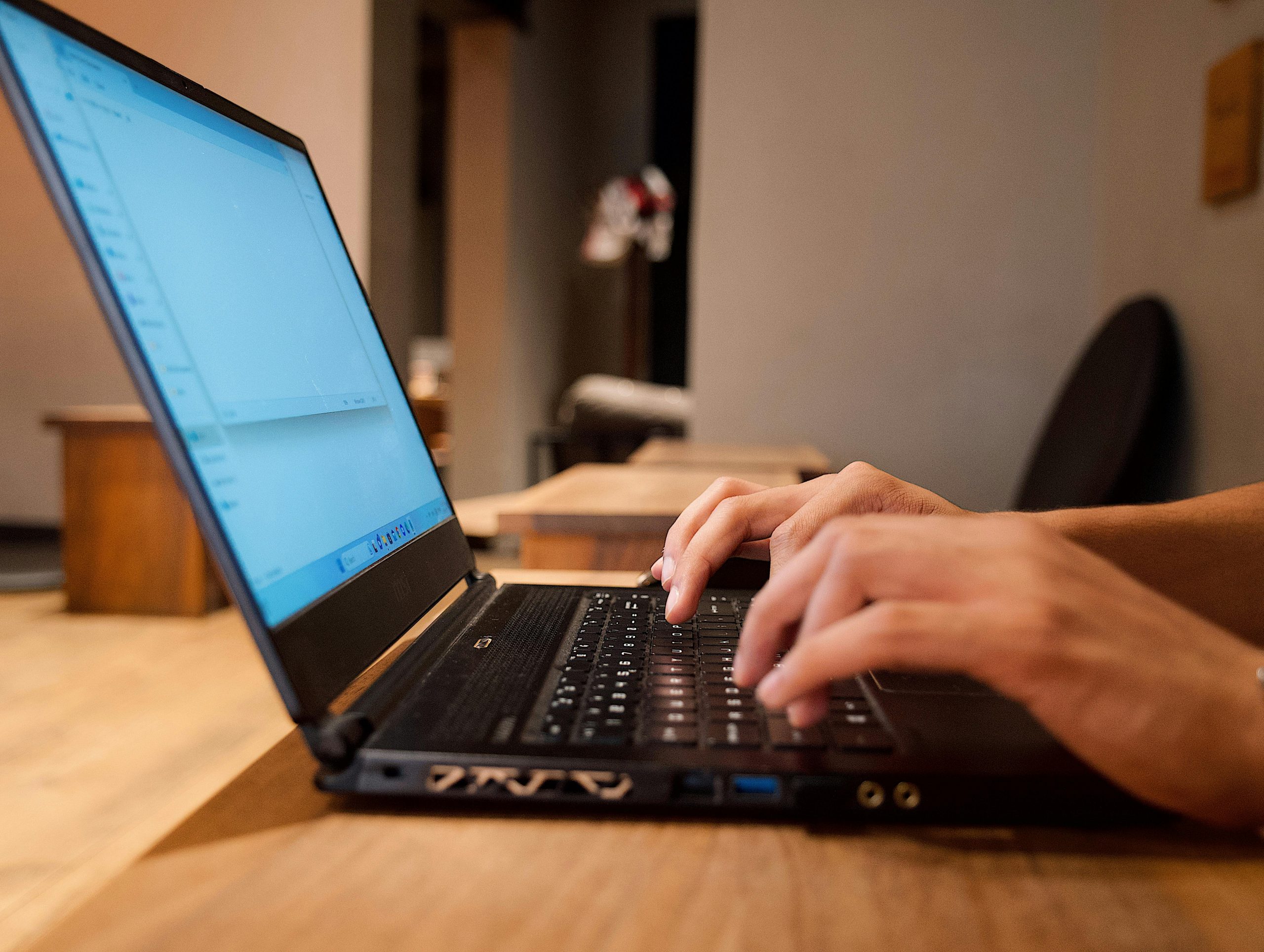
Blog

  • Why Laptop Overheating Happens During Normal Daily Use

    Why Laptop Overheating Happens During Normal Daily Use

    Laptops get hot even when you’re doing everyday things, not just when you’re gaming or doing a lot of photo or video editing. This piece will tell you the reasons for this heating up during your usual daily tasks, what situations make a laptop warmer, and what easy adjustments will typically both keep things running well and improve the flow of air inside.

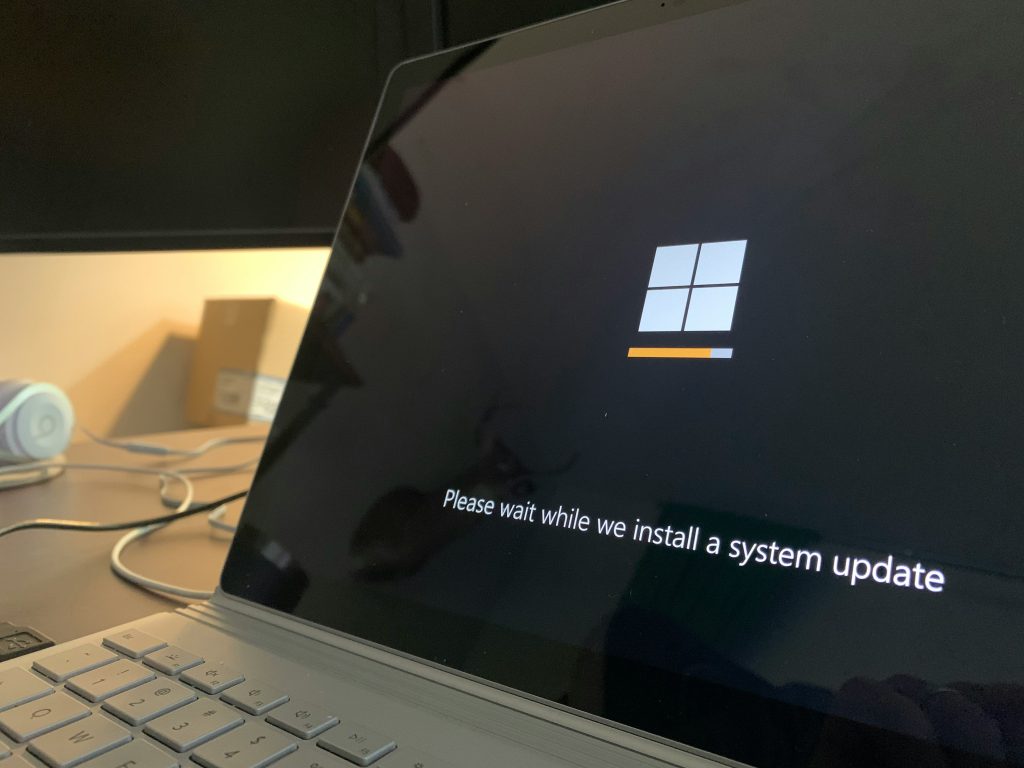
    Tech support for the insides of computers frequently say that some heat is always part of how computers work. However, a lot of heat will decrease how steadily and quickly they run. Many laptops will automatically slow down when the inside gets too hot in order to protect the parts inside. It’s for this reason that you’ll frequently notice your computer slowing down at the same time it’s overheating.

    Why laptop overheating can happen during basic tasks

    Lots of folks think only really complex programs cause a computer to get hot. But actually, just doing typical things like using your browser, being on video calls, letting it charge, files uploading and downloading to the cloud, or installing improvements for your programs can steadily push your computer. It might appear to be doing nothing, but your laptop is likely handling a bunch of processes in the background all at the same time.

    Tech help people often say that current browsers take up a lot of memory and do a lot of calculations. Many browser windows open at once, websites full of pictures and videos, and browser add-ons that are running all build up heat while you’re doing what feels like normal things.

    How laptop airflow affects temperature control

    How a laptop gets rid of heat is largely down to the flow of air within it. Most laptops suck air in and push it out through openings at the bottom, along the edges or around where the screen connects. But if you use one on something soft for a long time, like a duvet, a sofa, a pillow or even on your knees, those openings get covered. Warm air then gets trapped inside and the laptop heats up fast.

    Laptop repair people will nearly always advise using your laptop on a firm, even surface. This makes sure the vents aren’t obstructed, and allows the cooling system to do its job of moving air around with much more success.
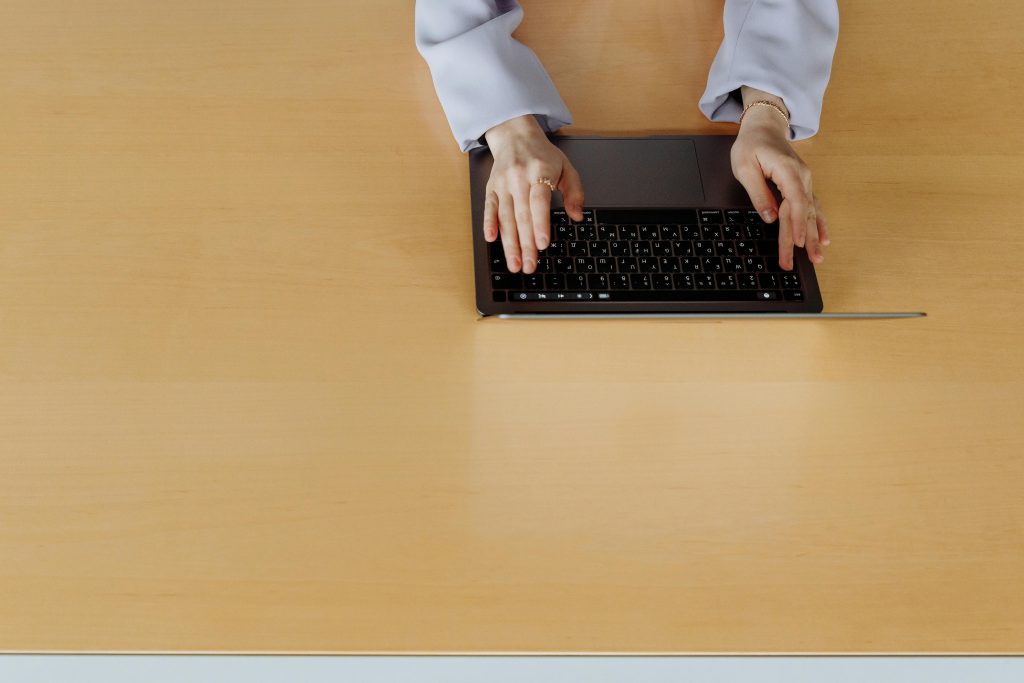
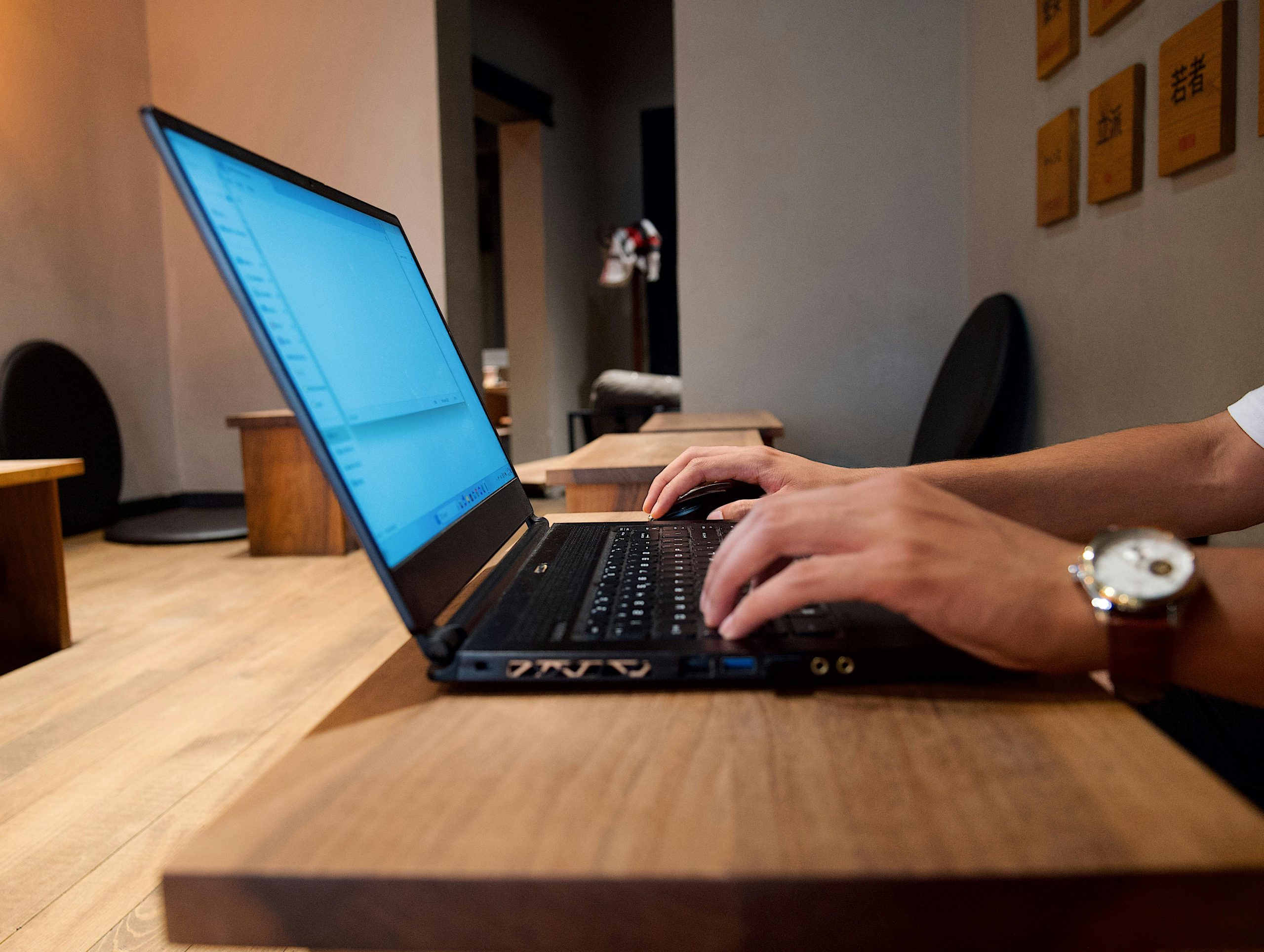
    laptop airflow improved by using a hard flat work surfaceCredit: Thirdman / Pexels

    Why charging and room temperature can raise device heat

    When you plug in your laptop, it often gets warmer because both the battery and the internal workings (the processor) are using energy at once. This warmth is much easier to detect in a hot room, particularly during the summer or if the room doesn’t have a lot of circulating air. So, a laptop that doesn’t get too hot in a cool office will likely feel a lot warmer if you use it in a hotter house.

    Tech support people at companies usually say to consider where you are before thinking something is seriously wrong with the device. Your laptop will heat up more quickly if it’s charging, getting an update installed, and in a warm room all at the same time.

    How dust buildup affects computer performance issues

    Over time, dust settles around the openings and inside the fans of your laptop, which restricts the air flow and makes the cooling system not work as well. As a result, the fan will probably turn on more often, make more noise and yet your laptop will still get hot. Often, people don’t realize this dust has accumulated until their computer starts to have problems fairly often.

    When you’re having heat issues, experts who fix computer hardware generally recommend cleaning the outside yourself and having someone professionally clean the inside. Just making sure the vents aren’t blocked is a really easy way to look after your laptop and can often help it perform better for much longer.

    What signs suggest overheating is affecting performance

    You’ll often notice problems with a very loud fan, apps being sluggish, delays in your voice or audio during calls, video suddenly getting choppy, or the part of your keyboard you rest your palms on getting quite hot. If things get really bad, your computer might lock up entirely, reboot on its own, or programs might just shut down for no apparent reason; it does this to take the strain off the bits inside.

    Engineers who build these machines say the system’s protection against heat is to avoid actual damage, but if it gets too hot over and over, it’s still going to be unpleasant to use and will diminish how good it feels. So keeping the heat in check is a good idea, even if your laptop isn’t broken yet.
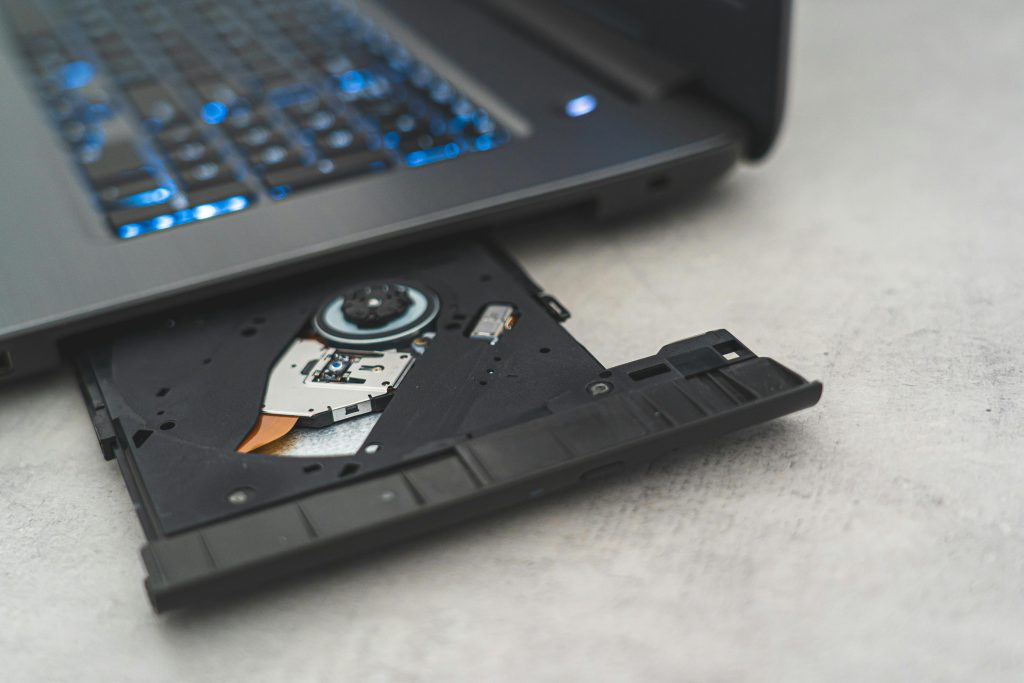
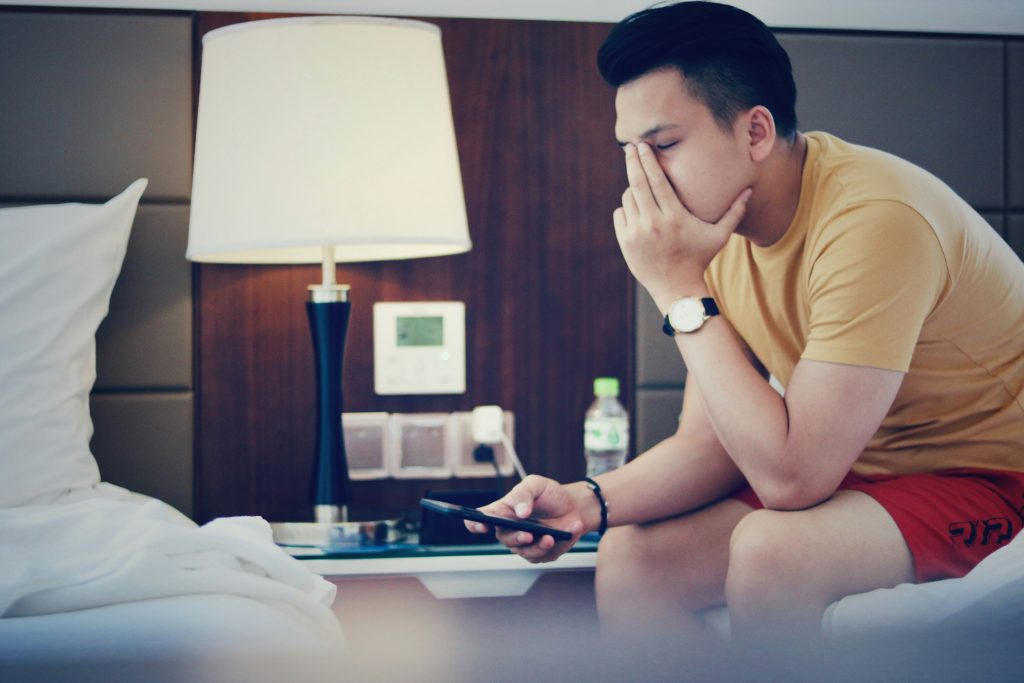
    signs of laptop overheating including fan noise and a warm keyboard

    Credit: Castorly Stock / pexels

    Which simple habits usually help most

    You can frequently get a pretty good drop in temperature with just a few little adjustments. For instance, using your laptop on something solid, shutting browser pages you aren’t actually on, regularly rebooting the computer, making sure the cooling holes aren’t blocked, and not doing very demanding things while the battery is filling up when it’s already hot are all useful. They won’t magically fix every problem, but a lot of the time they make things more comfortable and make your laptop run more smoothly.

    Tech support people will tell you managing heat is best done as something you do all the time. Your laptop won’t need loads of complicated repair work every seven days, but it will do better with regular things you do to help the air circulate and the temperature fall, over the long run.

    Frequently Asked Questions

    Q: Is laptop overheating normal during video calls?
    A: It can be, especially if the laptop is charging or many tabs are open. Video calls often use both processing power and network activity for extended periods.

    Q: Does using a laptop on a bed make overheating worse?
    A: Yes. Soft surfaces can block vents and reduce laptop airflow, which makes heat build up more quickly.

    Q: Can dust really cause computer performance issues?
    A: Yes. Dust can reduce cooling efficiency, which may lead to more fan noise, more heat, and lower performance.

    Q: Should users worry if a laptop feels warm while charging?
    A: Some warmth is normal, but strong heat combined with noise, lag, or instability may suggest the system needs better airflow or maintenance.

    Key Takeaway

    Laptops usually get too hot because of a lot of little things adding up, not one big problem. How much you’re using your browser, if it’s plugged in, how well air can get to the laptop, the temperature of the room, and dust all make the laptop warmer and can slow things down. If you make a habit of letting air circulate and do some simple cleaning, you’ll likely find your laptop runs cooler and works more smoothly.

    [INTERNAL LINKING SUGGESTIONS]

    – How to Speed Up a Slow Laptop Without Replacing It
    – Why Too Many Browser Tabs Affect Laptop Performance
    – Simple Desk Setup Habits That Help Laptop Airflow
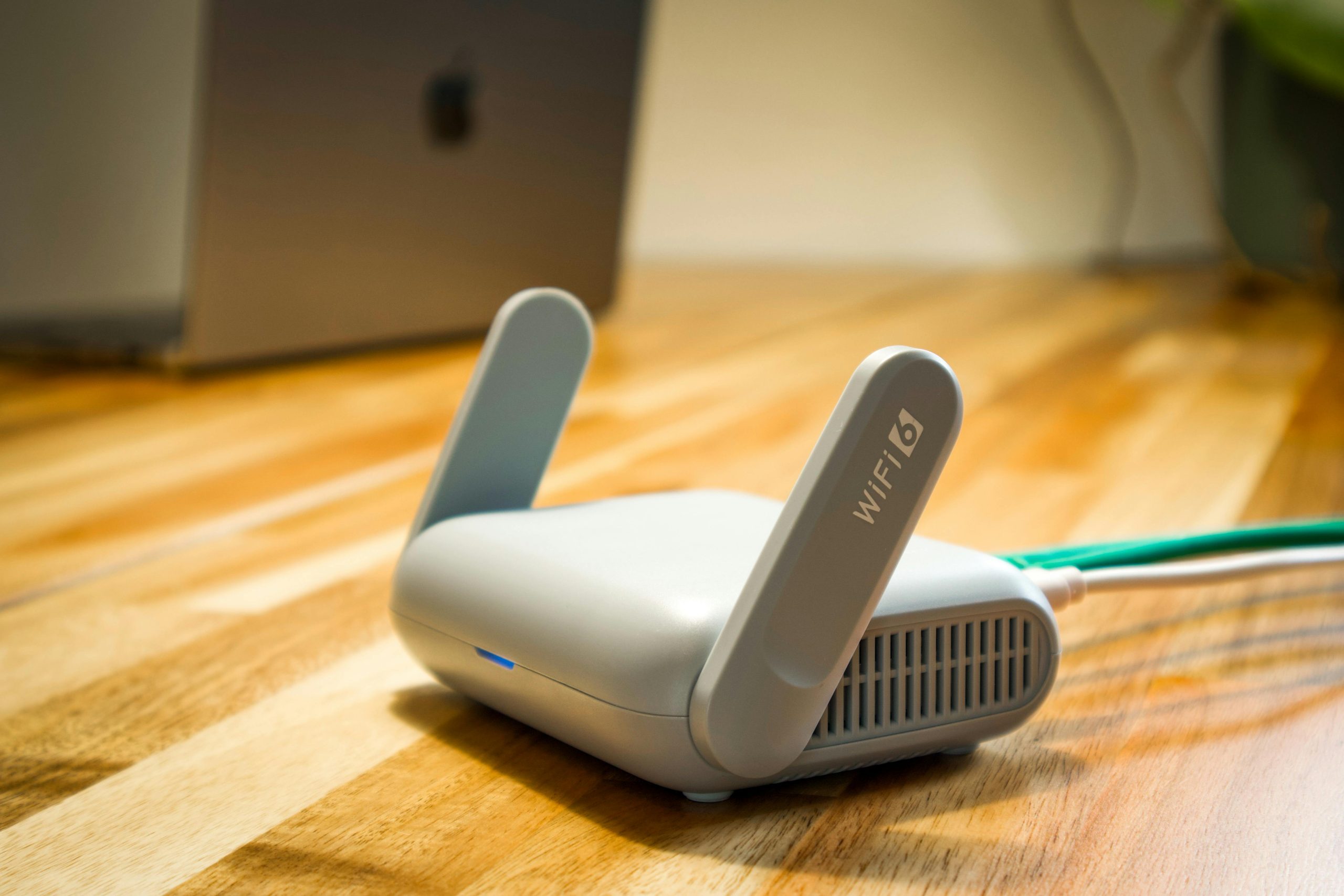
  • Why Home Wi-Fi Slows Down and What Usually Helps

    Why Home Wi-Fi Slows Down and What Usually Helps

    When your home Wi-Fi isn’t working well, video chats get choppy, websites are slow to appear, and things you’re watching online frequently stop and start. This piece will go over the reasons why your home Wi-Fi frequently becomes sluggish, what makes your Wi-Fi signal weak, and the fairly easy adjustments you can make to get it working better in most houses.

    Experts who deal with networks a lot say that the problem with your internet speed at home isn’t necessarily your internet company. Where you put the router, too many devices using the Wi-Fi at once, what your house is built from, and settings on the router that are old and need updating can all make things slower, even before the signal gets to your phone, laptop or television.

    Why home Wi-Fi slows down in busy households

    Nowadays, most houses have a lot more things linked up to the internet than they used to. You might have your phone, laptop, something for streaming, a smart television, a gaming machine, a camera and a smart speaker all going at the same time. If a lot of these all try to use your internet allowance at once, your home Wi-Fi will feel as though it’s slowed down, even if your internet package is good enough.

    Also, how well you connect can fluctuate depending on the time of day. Lots of things happening in the evening, like work meetings on the phone, files being saved to the cloud, downloading big files and watching things, can cause a brief overload. People who look at how home internet works often say you’re most aware of things slowing down when you’re doing several demanding things at once.

    How router placement affects home Wi-Fi signal strength

    Where you put your router actually has a bigger effect than most of us realize. If it’s tucked away in a cupboard, behind the TV, or down on the floor it’s likely to struggle to get a good signal all over your house. Thick walls, metal things, and mirrors all make the connection between your router and phones, laptops and so on, less reliable.

    Experts in getting things working at home will typically tell you to have the router in the middle of the house and out in the open if you can. Getting it up higher and away from big, solid obstacles will often solve the problem of a poor Wi-Fi signal in rooms close by.

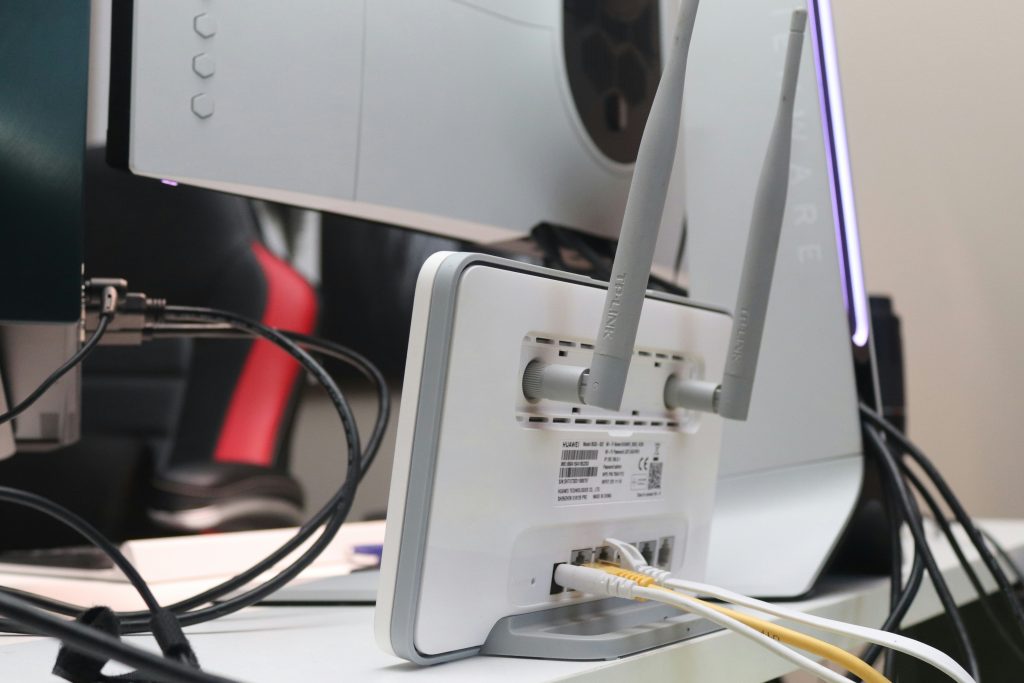
    home Wi-Fi router placement improving weak Wi-Fi signal indoors
    Credit: Boitumelo / unsplash

    What causes a weak Wi-Fi signal in some rooms

    You usually get a poor Wi-Fi signal in back bedrooms, upstairs in an office, or in any room at the edges of the house that’s quite a distance from the router. How far away you are is important, but what your house is made of is equally so. Brick, concrete, tiled floors, and bulky appliances can all get in the way of the signal. What’s more, even the glass of a fish tank or big, heavy furniture can change how well Wi-Fi works in certain areas.

    Wireless experts will tell you that other electrical things nearby can cause problems. Specifically, microwaves, cordless phones, baby monitors, and lots of Wi-Fi networks in a block of flats can all fight for the same channels as your home Wi-Fi, making it less reliable. Because of this, your connection won’t just be slow, it will seem to cut out at random.

    Why older equipment can create internet speed issues

    Your router from a while back might not be able to handle how we use the internet now. Something that was fine for just looking at websites in the past will likely have trouble with things like streaming videos, all the data from a smart home, video calls, and backing stuff up to the cloud. And importantly, the older the ‘instructions’ the router uses (its firmware) the less consistently and safely it will work.

    Tech support people generally suggest first looking to see if your router’s software is the latest version and if the router itself can still do everything your household requires. You can have a very speedy internet service, but a really old router can slow things down and become the limiting factor for how fast things actually feel.

    Which simple changes usually help most

    Often the best solutions are really straightforward. Just turning your modem and router off and then back on will usually get rid of short-term connection problems. If you put the router somewhere with a better signal, you’ll get a stronger Wi-Fi range. And taking devices that aren’t being used off the network, particularly older phones, tablets, or streaming boxes that connect on their own, will lower the amount of data going on in the background.

    If you can, it’s good to do things that use a lot of internet at different times; you might plan big downloads or backing up your videos for when you aren’t working. For desktops, TVs and gaming consoles, network experts advise using an Ethernet cable instead of Wi-Fi when you absolutely need a fast and reliable connection.

    checking home Wi-Fi and internet speed issues with connected devices
    Credit: Giang Vu / unsplash

    When the internet provider may not be the main problem

    We often quickly blame the internet company when things go wrong, but the trouble isn’t necessarily with them. If you have a great signal right by the router but the connection is bad only in particular rooms, the problem is likely the WiFi’s reach within your home, not the service coming into it. And if the slow speeds happen just at specific times, or on only one computer, phone or tablet, the cause is probably something inside your walls.

    Because of this, internet help desks will commonly ask you to try a lot of different devices, in a lot of different spots around your house, before you declare the slowdown’s source. This way you can figure out if the problem is with your provider, your router, or that one specific device.

    Frequently Asked Questions

    Q: Why does home Wi-Fi work well in one room but not another?
    A: Distance, thick walls, furniture, and interference can all weaken a signal in certain parts of a home. Router placement often makes a major difference.

    Q: Does restarting the router really help?
    A: Yes, restarting can clear temporary network problems and improve stability. It is a simple step that often helps before deeper troubleshooting begins.

    Q: Can too many devices slow down home Wi-Fi?
    A: Yes, especially when several devices stream video, sync files, or download updates at the same time. Busy households often see more internet speed issues during peak hours.

    Q: What is the easiest way to reduce a weak Wi-Fi signal?
    A: Moving the router to a more open, central location is often the simplest first step. Keeping it away from large obstacles can improve coverage quickly.

    Key Takeaway

    Most of the time when your home Wi-Fi is acting up, it’s because of little things with how it’s set up, not some big breakdown. Where you’ve put the router, lots of devices being in the same spot, areas of the house where the signal is already pretty faint, and how old your equipment is are all things that impact how well it works every day. If you thoughtfully look at those simple things, you can normally get a better Wi-Fi connection, and solve the usual problems with your internet being slow, without doing anything really complicated.

    [INTERNAL LINKING SUGGESTIONS]
    – How Router Placement Changes Wi-Fi Coverage
    – Common Reasons Video Calls Lag on Home Internet
    – What Internet Speeds Different Households Usually Need

  • How to Speed Up a Slow Laptop Without Replacing It

    How to Speed Up a Slow Laptop Without Replacing It

    You usually start to look at getting a sluggish laptop to work faster once doing things you do every day becomes irritating. This guide will tell you what generally causes laptops to get slower and how to make them speed up, without you needing to buy a new one.

    Tech support people will frequently say that how old the laptop is isn’t the whole story. Programs that start automatically, a full hard drive, old versions of software, a browser with too many things going on, and the laptop getting too hot are all common ways a laptop can lose speed, even if it’s still good for several more years.

    Why laptops become slower over time

    Your laptop doesn’t usually get slow from just one thing happening. Instead, it typically gets slower and slower as you collect more files, have more programs start up when you turn it on, and the computer does more things ‘behind the scenes’. Things like temporary files, downloads you’ve had for ages and your files being backed up to the cloud all make the computer work harder.

    Tech people find a lot of the time that people don’t understand how many things are running in the background. Programs you use for messages, apps for your cloud storage, services that automatically update things, and add-ons for your browser all use up memory even before you’ve started doing your own work.

    How startup programs affect laptop performance

    A really easy thing to do to get a sluggish laptop working faster is to have fewer programs begin when you turn it on. Lots of computers automatically start chatting programs, things for music or video, little helper applications, and those that look for updates. This makes the computer take longer to start, and it uses up power from the computer before you are even able to use it.

    Switching off programs you don’t need at startup doesn’t normally get rid of the program altogether, it just prevents it from beginning as soon as you power up. Tech help people generally suggest you leave your security programs running, but you can turn off other things you can open later when you actually want them.

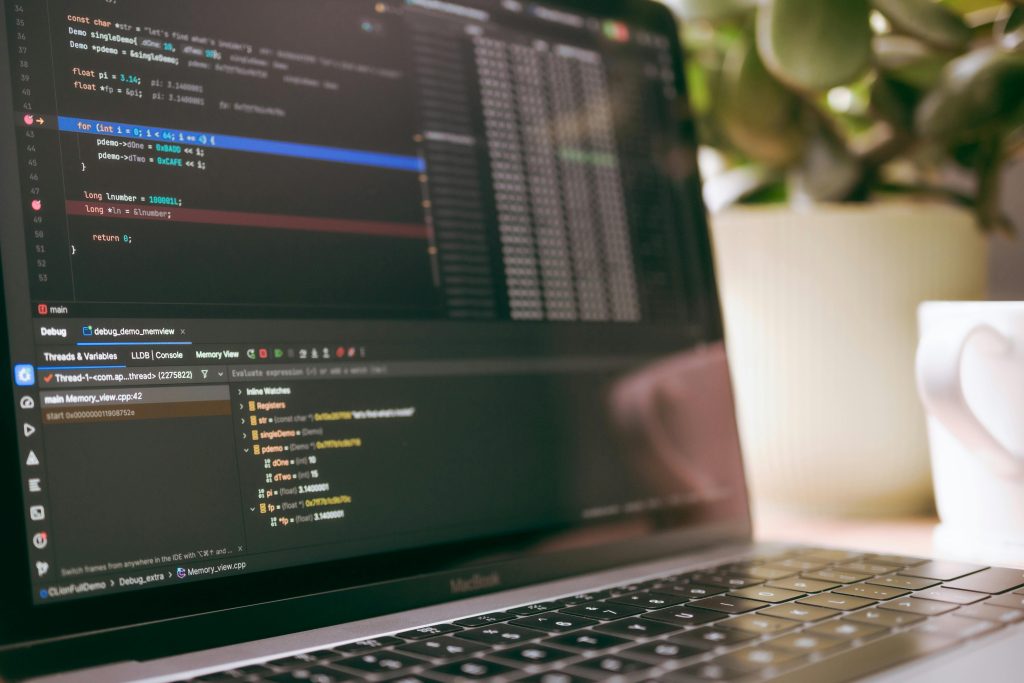
    speed up a slow laptop by reducing startup programs
    Credit: Daniil Komov / pexels

    Why storage cleanup matters more than many users expect

    When your hard drive is almost full, everything just feels sluggish. Big downloads, copies of files you already have, programs you used to install, and videos or pictures you don’t look at anymore slowly eat up space. You could get rid of files, or you could put them on something like cloud storage or a USB drive.

    People who work on computers for a living will generally tell you to look at your biggest folders at first. Your Downloads, what’s on your Desktop, and old video collections are often much larger than you realize. And don’t forget to empty your Recycle Bin, because files you’ve deleted are still using up space on your drive until that’s done.

    What browser habits can do to a laptop

    These days, your browser is often what’s really making your computer feel sluggish. Lots of tabs open, websites with lots of pictures and video, and a bunch of extra add-ons can all soak up a lot of your computer’s memory. Even if you have a quite a good laptop, it’ll start feeling slow if the browser is doing too much for too long.

    If you want to work faster on your computer, people who are good at being productive with digital tools recommend shutting tabs you aren’t using, deleting extensions you don’t need anymore, and restarting your browser at least once a day. And to help pages load properly, or if they’re doing odd things, you should occasionally erase the browser’s stored cache.

    How updates and restarts help keep systems stable

    Updates to your operating system commonly fix errors, improve security, and make things run faster. If you wait too long with those updates, your laptop might become glitchy or sluggish. And restarting is important, because as you use things, your computer’s short-term memory gets fuller and fuller.

    Software help desks suggest a proper restart rather than simply shutting the screen for multiple days. A complete restart allows the computer to properly begin all programs again and to install things that are meant to be done during maintenance.

    speed up a slow laptop with updates and restart habits
    Credit: Clint Patterson / unsplash

    When heat and dust become hidden performance problems

    Laptops often get slower when they get hot. Many of them do this on purpose to stop the stuff inside from being damaged by the heat. And a lot of dust collecting around the little holes where air gets in and out (the vents) makes this overheating even more of a problem. Using a laptop on something soft like your bed or the sofa can also cut off the air it needs.

    Laptop repair people usually say to use your laptop on a hard surface, be careful when you clean the vents, and if you can, don’t use it in really hot places. Just letting the air flow around the laptop better can really help it keep running at the same speed.

    Frequently Asked Questions

    Q: Will deleting files really speed up a slow laptop?
    A: It can help, especially when storage is nearly full. Storage cleanup gives the system more room to manage updates, temporary files, and normal tasks.

    Q: How many startup programs are too many?
    A: There is no single number, but unnecessary startup programs often affect boot time and laptop performance. Security tools should stay active, while optional apps can usually be delayed.

    Q: Does restarting help more than sleep mode?
    A: Yes, restarting clears temporary memory use and resets background processes. Sleep mode is useful, but it does not fully refresh the system.

    Q: Why does a browser make a laptop feel slow?
    A: Modern browsers use a lot of memory, especially with many tabs, extensions, and media-heavy pages open at once.

    Key Takeaway

    Laptops get slow over time, but generally lots of little adjustments are what you need to make them faster, not a single big one. How quickly your laptop runs is impacted by things like what programs automatically start when you turn it on, how much space you have on your drive, what you do in your web browser, whether everything is up to date, and how well air can circulate to keep it cool. If you deal with these things frequently, you’ll often be able to speed up a sluggish laptop and get more life out of it.

    [INTERNAL LINKING SUGGESTIONS]
    – Why Laptops Overheat During Everyday Tasks
    – How to Organize Computer Files More Efficiently
    – Common Browser Settings That Affect Performance

  • How to Improve Smartphone Battery Life With Simple Daily Settings

    How to Improve Smartphone Battery Life With Simple Daily Settings

    How long your phone holds a charge impacts your work, trips, and keeping in touch with people. This guide will show you which settings and habits typically use up your smartphone battery, and how to get rid of battery drain that isn’t important to you, all without changing the way you actually use the phone.

    What your battery does is something tech analysts generally say is due to both the phone itself and what you do with it. And phone software experts add that how apps are used, your screen’s brightness, using wifi or mobile data, and how you charge the phone are all things that influence how much time you get from a single charge.

    Why smartphone battery life drops faster than expected

    People often think a battery that doesn’t hold a charge is because the phone is old, but actually, how you use the phone each day is usually more important. Things like a very bright screen, having location services on all the time, lots of apps refreshing in the background, and a stream of notifications will run the battery down quicker than you might think.

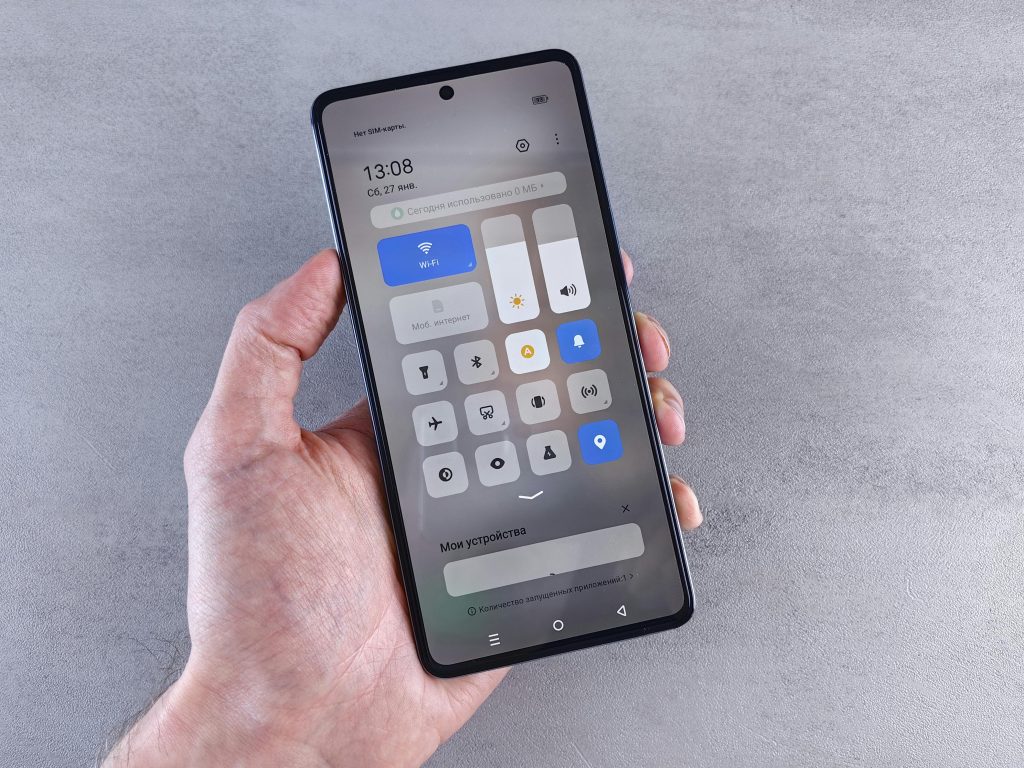
    Wireless capabilities are also a factor. Bluetooth, using 5G, a hotspot, and your phone continuously searching for WiFi all contribute to power being used even when you aren’t actively doing anything. Phone designers typically say to look at what’s connected and only have what you need turned on, instead of having everything going all day long.

    smartphone battery life controls including brightness and wireless settings
    Credit: Andrey Matveev/ pexels

    How screen settings can improve smartphone battery life

    Your phone’s screen uses a lot of battery. You can get more life from your phone’s battery quickly by dimming the screen, letting the screen automatically adjust its brightness, and shortening how long the screen stays on before turning off. And on phones with OLED screens, dark mode could help too, as black parts of the screen need less energy.

    Those who study how people use technology (accessibility experts) frequently say to find a good point between being able to see the screen and saving battery. You really don’t need the screen at full brightness inside, and even just a little adjustment throughout the day will reduce how much battery is used.

    Which background app settings matter most

    Apps doing things in the background are a big reason your battery dies quickly. They’ll update information, find out where you are, tell you things, or send your data to the internet all while you aren’t actually using the app. Your phone’s settings and the way they show battery usage will tell you which apps are taking the most energy.

    Security experts on phones suggest restricting what apps can do while in the background if they don’t need to. Social media, shopping, and weather apps, for example, will go on working at it unless you deliberately change their settings.

    Also, email popping up as it arrives and phones that automatically update very often both use a lot of battery. If you don’t need to be updated immediately, you’ll probably find your battery lasts longer if you have your phone update less frequently.

    How charging habits affect phone battery health

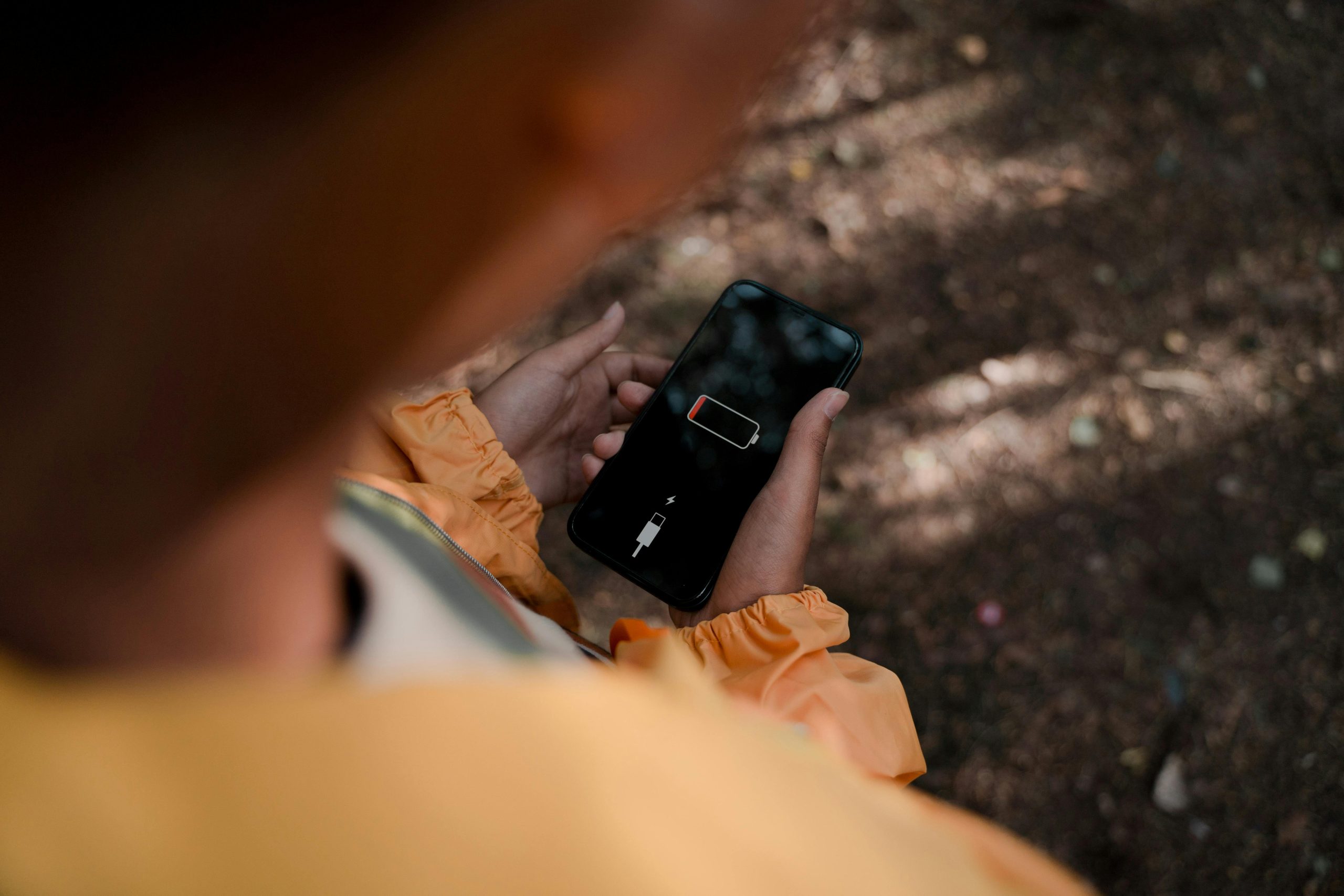
    Looking after how you charge your phone will help its battery stay in good condition for longer. Phone battery experts generally say you shouldn’t let it get very hot, you should take off bulky cases if the phone warms up during charging, and you should only use chargers you can rely on that are designed to give your phone the amount of power it needs.

    Constantly having your battery at 100% or letting it drain to empty a lot are both hard on it. Luckily, a lot of phone companies these days have clever charging programs which are slower overnight and help your battery last. Switching these on can improve how you use your phone every day and also how well it works in the future.

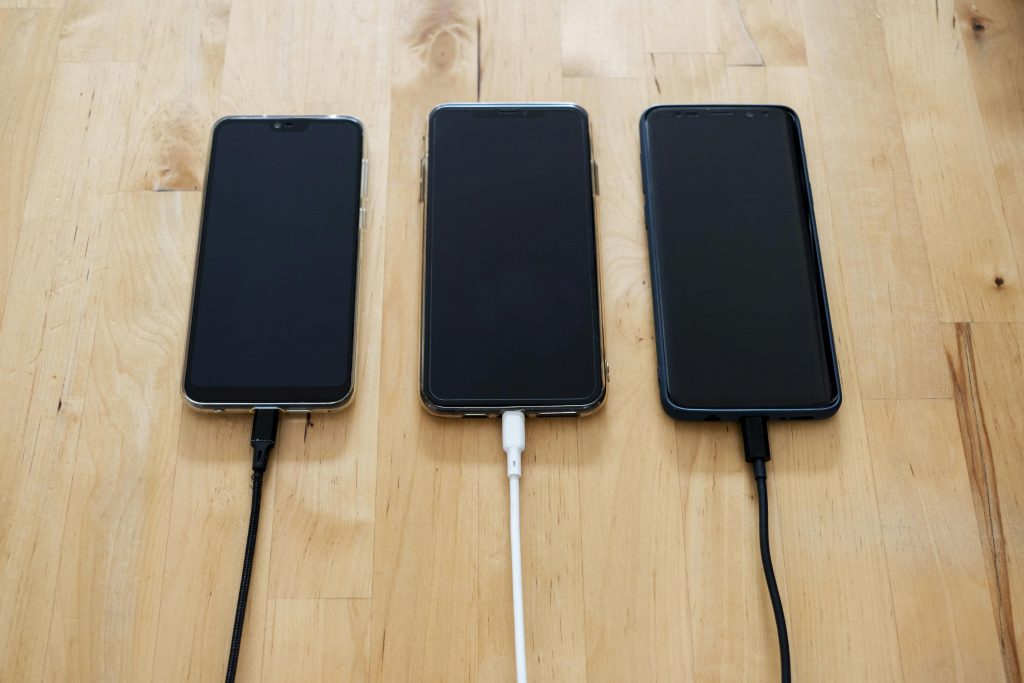
    smartphone battery life and phone battery health during indoor charging
    Credit: Stanley Ng/ pexels

    When battery saver mode is worth using

    Battery saver mode will make your phone a little less fast, but it’s generally a good thing. It does this by restricting what’s happening on your phone in the background, slowing down how often the screen updates, checking your location less frequently, and making animations quicker to finish. All of this helps your battery last longer when you can’t plug it in.

    Phone support people frequently suggest switching battery saver on at the beginning of a trip or a long day at work, rather than waiting for the battery to be nearly empty. Doing it sooner will slow the battery losing power before you’re actually in trouble.

    Other small steps that help each day

    When your phone’s software is current, it’s better at managing how it uses electricity, and updates frequently have solutions for battery problems. You don’t necessarily have to close every app, but if you reboot your phone now and then, it gets rid of little glitches.

    Things like widgets, wallpapers that are actually moving, and continuously letting apps know where you are all use more power. So, switching off things you don’t use daily is a really simple way to get more time out of your phone’s battery, and you don’t have to spend any money on it.

    Frequently Asked Questions

    Q: Does dark mode really improve smartphone battery life?
    A: On phones with OLED displays, dark mode can help reduce power use because darker pixels may consume less energy. The effect is usually moderate, but it can still help across a full day.

    Q: Is fast charging bad for phone battery health?
    A: Fast charging itself is not always harmful when supported by the device. Heat is the bigger concern, so keeping the phone cool during charging matters more.

    Q: Which apps usually drain battery the most?
    A: Social media, navigation, video streaming, and apps with constant background app activity often use the most battery. Battery settings can usually show exact app usage.

    Q: Should users charge a phone to 100 percent every time?
    A: Occasional full charging is normal, but many battery experts suggest avoiding constant high-heat full charging when possible. Optimized charging settings can help manage that automatically.

    Key Takeaway

    You’ll generally get more from your phone’s battery by making lots of little changes each day, not by doing one big thing to solve the problem. How bright your screen is, what apps are doing stuff in the background, the way you charge your phone, and using any battery saving features are all involved. If you check these things fairly often, you’ll probably find your battery lasts longer and stays in good condition for a longer period of time.

    [INTERNAL LINKING SUGGESTIONS]
    – How to Free Up Storage Space on a Smartphone
    – Why Some Apps Drain More Battery Than Others
    – How to Manage Background App Permissions on Android and iPhone