Author: Emily Parker

  • How to Review App Permissions Without Making Devices Harder to Use

    How to Review App Permissions Without Making Devices Harder to Use

    Apps on your phone ask for access to different features, and these requests determine what information they can get. However, many of us don’t give a second thought to these permissions after we’ve downloaded an app. I’m going to explain what app permissions are, why being in charge of your privacy matters, and how to adjust these settings thoughtfully so your favourite apps will continue to work as you’d expect.

    Security specialists who understand phones and online safety say that managing permission settings is a straightforward way of increasing your privacy. You don’t have to refuse every request, but consider if the access an app wants actually fits with what the app does.

    Why app permissions matter more than they seem

    Many apps are looking for your location, your contact list of friends, your photos, what your microphone hears, your camera, your notifications and messages, and your files. Some of these requests are reasonable. A map application, for instance, needs to know where you are to provide directions and a video call application won’t function without access to your microphone and camera. Problems develop though, when apps request far more data than they logically should, and then continue to track your information even when you aren’t using them.

    Privacy professionals have noticed that people generally quickly agree to permission requests simply to begin using the application. Over time, this can build up to a massive amount of access for many apps and you haven’t properly examined each app’s capabilities.

    How to review app permissions in a practical way

    To start, have a look in your device’s settings; permissions are usually grouped by what they allow. You’ll then be able to see which apps are using your location, camera, microphone, contacts, and photos, and decide if each one really needs to. It’s usually faster to look at permissions based on the type of access, rather than going through each app on its own.

    Most mobile phone support people suggest beginning with apps that have access to your most personal details. So, things like your location, microphone, camera, and contacts are all good to examine particularly closely because of how they connect to your daily life and the people you’re in touch with.
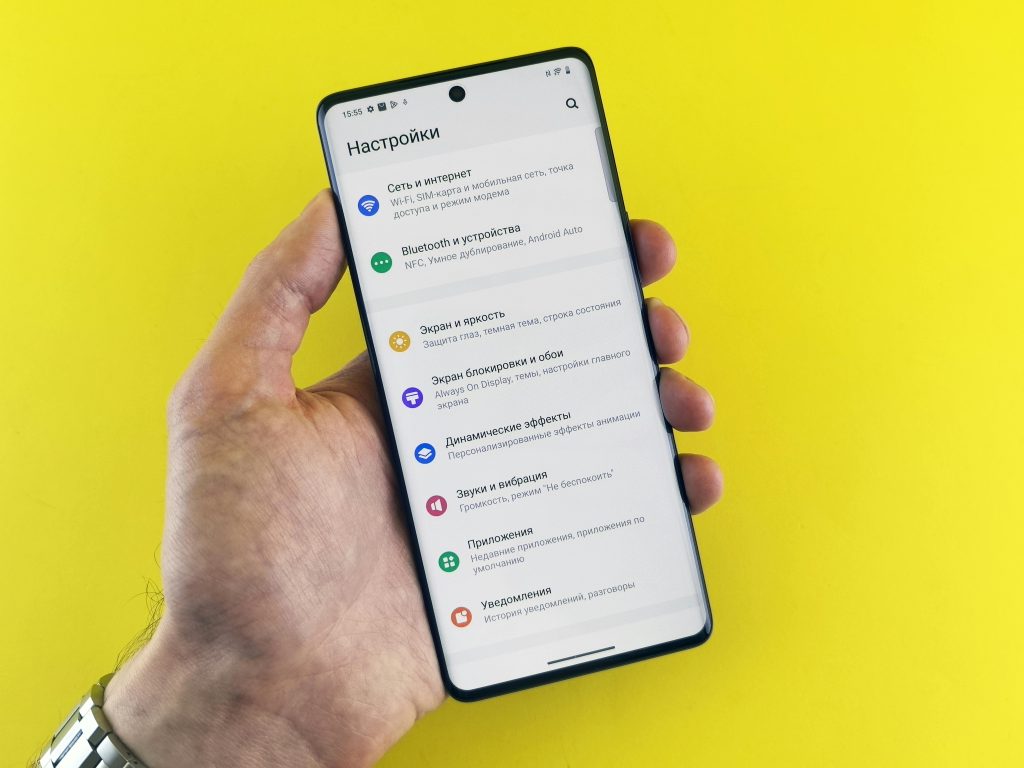
    app permissions menu with location settings and camera access controls

    Credit: Andrey Matveev / Pexels

    Which permission levels usually make the most sense

    Many phones now offer options for controlling what apps are permitted to do. You can allow access all the time, only during use of the application, be asked about it on each occasion, or refuse permission outright. It’s often a sensible middle ground to only grant access while you’re actually on the app; that way the app functions as needed, but isn’t perpetually at full access.

    Privacy specialists generally advise being quite precise with these permissions. Choosing limited access, when possible, is preferable to an all-encompassing ‘yes’ or a blanket ‘no’, as it makes things simple for you and improves your privacy at the same time.

    How location settings affect privacy the most

    Really consider which apps are tracking your whereabouts. These locations reveal your habits, your typical routine and all the places you spend a lot of time. Apps for directions or car services absolutely need to know precisely where you are while you are using them. However, an app for shopping, altering your phone’s wallpaper or a simple utility doesn’t need so much detail.

    Security professionals regularly recommend checking if apps are using your precise location when a general idea of your region would be sufficient. By tweaking the app’s location permissions slightly, you can cut down on the data they’re collecting and you probably won’t even find the app behaves differently.

    When permissions can affect mobile security

    We generally consider permissions in terms of privacy, but they’re a big part of your phone’s security as well. If an application can access your files, messages or the phone’s internal processes for no legitimate reason, a hack or a glitch is much more likely to cause serious issues. Of course not all apps are harmful, but giving apps broad access to a lot of different things is considerably riskier than limiting what they can get to.

    Security professionals at companies serving the public often suggest removing apps you aren’t using. This is a straightforward approach to have fewer apps with excessive permissions and, subsequently, to decrease activity running in the background on your phone.
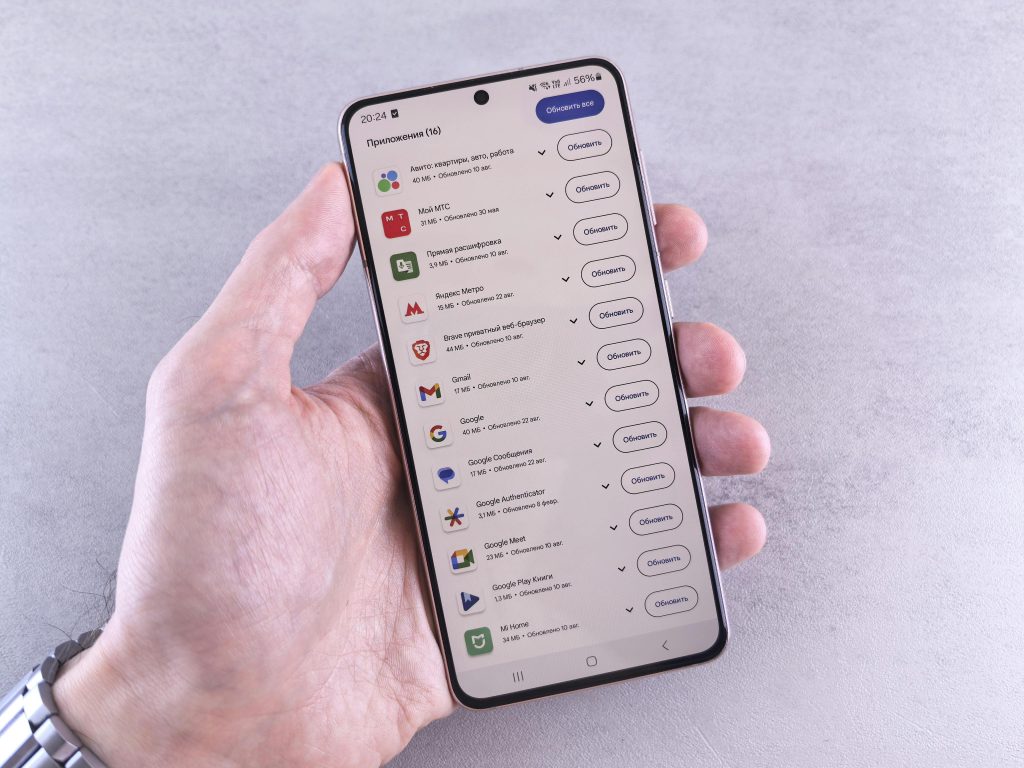
    reducing app permissions by deleting unused apps from a smartphone

    Credit: Andrey Matveev  / Pexels

    How often users should review privacy controls

    You don’t need to check which things apps are permitted to access all the time, but doing it a few times during the year is a good plan. Actually, it’s beneficial to review your privacy settings after you’ve installed a bunch of apps, or when you get a new phone or tablet, or if your battery is unexpectedly draining rapidly, or your phone is mysteriously running processes in the background.

    Both apps and the operating system of your phone are continually being updated and mobile security professionals advise that when they gain new functions, they will usually request new permissions. That permission you gave an app previously may not be for the same activity it’s now undertaking.

    Frequently Asked Questions

    Q: Should every app have location access turned off?
    A: Not always. Some apps need location settings to work properly, but many do not need constant access. Reviewing each case individually usually works best.

    Q: What does “allow only while using the app” mean?
    A: It means the app can use that permission only while the app is open and active. This is often a useful middle option for privacy controls.

    Q: Can app permissions affect battery life too?
    A: Yes. Apps that keep using location, syncing data, or running in the background can affect both battery drain and mobile security.

    Q: Is deleting unused apps better than just turning permissions off?
    A: In many cases, yes. Removing unused apps reduces clutter, background activity, and the number of apps that can request or retain access over time.

    Key Takeaway

    It’s not a massive undertaking to review what apps are permitted to do. A reasonable check of which apps are getting your location, using your camera, using your microphone, and handling anything regarding your privacy will reduce the amount of data apps obtain unnecessarily, and won’t make using your phone harder. Reviewing these app permissions from time to time both protects your personal details and enhances your phone’s overall security.

    [INTERNAL LINKING SUGGESTIONS]

    – What Phone Privacy Settings Matter Most for Everyday Users
    – Why Some Apps Request More Access Than Expected
    – How to Reduce Background Activity on Mobile Devices
  • How to Set Up Smart Home Devices With Fewer Connection Problems

    How to Set Up Smart Home Devices With Fewer Connection Problems

    Smart home devices can make daily routines easier, but setup problems often appear early. This guide explains how to set up smart home devices more smoothly, reduce common syncing issues, and build better habits around network strength, naming, updates, and privacy from the start.

    Home technology support teams often note that many setup problems come from simple issues rather than faulty products. Weak signals, rushed app permissions, confusing device names, and skipped updates can all make smart home setup more difficult than it needs to be.

    Why smart home devices often fail during setup

    Many connected devices depend on a stable Wi-Fi signal, the right app permissions, and correct account details. If one of those parts is missing or inconsistent, setup may stop halfway through or the device may appear online for a moment and then disappear. This often happens when users move too quickly between steps or when several devices are being added at once.

    Support specialists generally recommend setting up one device at a time. That makes it easier to see where a problem begins and prevents account confusion when several connected devices are trying to register together.

    How Wi-Fi strength affects smart home setup

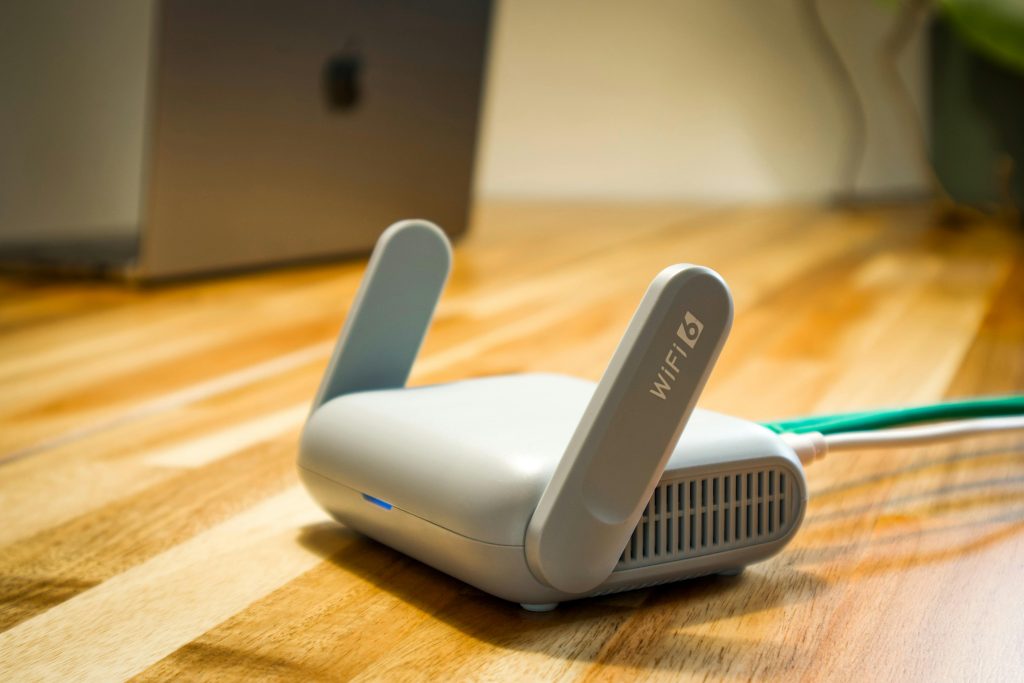
    Smart home devices depend heavily on signal quality. A smart speaker or camera placed far from the router may have trouble finishing setup even if a phone in the same room still seems to work. Some devices also rely on specific network conditions and may not connect well if the signal is weak or unstable.

    Wireless support teams often recommend starting setup in the same room as the router when possible. Once the device is connected and updated, it can be moved to its final location and tested again for stability.

    smart home devices setup near a router for a stronger connection

    Credit: Pascal / Pexels

    Why clear device names make connected devices easier to manage

    Simple naming helps more than many users expect. If several devices are called “light,” “camera,” or “plug,” voice commands and app controls can become confusing quickly. Naming devices by room and function usually works better. Examples such as “hall lamp” or “kitchen camera” are easier to understand later.

    Smart home specialists often suggest setting naming rules early so devices stay organized as the system grows. Clear names can also make troubleshooting easier when one item disconnects or behaves differently from the others.

    Why updates matter before devices are fully in use

    Some smart home devices ship with older software and need updates soon after setup. Skipping those updates can lead to app problems, syncing errors, or weaker security. Firmware updates often fix connection issues that users might otherwise blame on the router or phone.

    Consumer technology analysts often recommend finishing setup only after updates are installed and the device has been restarted if needed. This extra step may save time later by reducing repeat connection problems.

    Which privacy settings deserve attention first

    Privacy matters because many smart home devices collect activity data, respond to voice commands, or use cameras and microphones. The right settings will vary by device, but privacy controls should be reviewed before the system becomes part of daily routines. Account passwords, guest access, and permission settings are good places to begin.

    Digital privacy educators usually recommend checking whether voice recordings are stored, whether cameras can be turned off when not in use, and whether the app allows security alerts for unexpected logins. Those steps support stronger home automation basics without making the system harder to use.

    privacy settings for smart home devices inside a mobile app

    Credit: Jakub Zerdzicki / Pexels

    How to reduce future connection problems

    Once the device works, it helps to keep the system simple. Avoid adding too many devices at once, remove devices that are no longer used, and keep apps and firmware reasonably current. It also helps to note which room each device belongs to and which account manages it.

    Home support teams often explain that long-term stability comes from routine care rather than constant adjustment. A small amount of organization can make connected devices easier to manage and easier to fix when something changes.

    Frequently Asked Questions

    Q: Why do smart home devices disconnect after setup?
    A: Weak Wi-Fi, outdated firmware, and account sync issues are common reasons. Signal stability and updates usually matter more than users expect.

    Q: Should devices be named by brand or by room?
    A: Room-based naming is often easier for everyday use. Clear names help both in apps and with voice controls.

    Q: Are privacy settings really important for smart home setup?
    A: Yes. Connected devices may store activity data, recordings, or access details, so privacy habits should be part of setup from the beginning.

    Q: Is it better to connect many devices at once?
    A: Usually not. Setting up one device at a time makes troubleshooting easier and reduces account or syncing confusion.

    Key Takeaway

    Successful smart home setup depends on careful basics more than speed. Signal quality, clear naming, updates, and privacy settings all shape how well smart home devices work over time. Users who build good home automation basics early can usually avoid many common connection and syncing problems later.

    [INTERNAL LINKING SUGGESTIONS]

    – Why Some Smart Speakers Lose Connection at Home
    – How Router Placement Affects Connected Devices
    – Privacy Checks to Make Before Adding Home Cameras

  • How AI in Daily Life Is Changing Routine Digital Tasks

    How AI in Daily Life Is Changing Routine Digital Tasks

    You’re likely using artificial intelligence in your day-to-day life all the time, often without realizing it. This piece will show you where AI is within the tech you use every day, how things like voice activated helpers and general automation are shifting how we do things online, and why this is all important for people like you and me.

    A lot of the people who study software will tell you AI isn’t just for very specific jobs or complicated scientific investigations anymore. Instead it’s now in programs all of us use to organize emails, guess what you’re looking for in a search, make pictures better, get rid of junk mail, or do what you say to them on your devices.

    Where AI in daily life shows up most often

    We use artificial intelligence all the time in our day to day lives, with things like our emails, when we search online, on phones, on maps and on social media. Your email’s spam folder sorts out the junk before you even see it. When you use a search engine, it tries to guess what you’re looking for. And your route apps work out the traffic and advise you on quicker ways to get to where you’re going. We’re so used to these things now, but they all work because of automated pattern recognition.

    Teachers of technology frequently say that these systems are good for us as they cut down on time spent on boring, repeated jobs. More importantly, they affect how we locate and get information, meaning they have a lot more impact than you might initially think.

    How AI tools help with routine organization

    AI is often useful for the things we do all the time to get ourselves organised, with help for arranging, grouping or deciding which information is most important. Your email program might point out the messages that are likely to be from people you want to hear from and programs for your diary will offer times for meetings. When you’re writing, software will show you spelling mistakes or guess the word you are about to type.

    People who really understand being productive say these kinds of things are at their best when they are straightforward and do what you’d expect. You don’t have to know all the complicated workings to get something from them, though it’s a good idea to realise how much these automatic tips are influencing what you do each day.

    AI tools helping organize email and daily digital tasks

    Credit: Jakub Zerdzicki / pexels

    Why voice assistants remain one of the clearest examples

    You can really experience AI pretty easily with voice assistants – you talk to them. When you set a timer, get the forecast, manage your tunes, or quickly look something up, all that depends on a system that understands what you say and figures out what you probably mean.

    A lot of people who teach digital skills point out that voice assistants illustrate both what AI is good at and where it falls down. They’re excellent for short, specific things you want done. But for anything more complicated, you’ll often still need a person to think things through or double check the results.

    How everyday automation changes digital habits

    Automation in our daily lives eases things for us in little ways you can tell. Your phone might automatically put photos in order, tell you the best way to go considering the traffic, and block calls that are probably spam. When you’re shopping online, apps will guess when things will arrive. Streaming services pick out shows for you to watch based on what you’ve watched before.

    However, people studying the tech we buy as customers frequently point out that this ease can also mean we aren’t paying as much attention. We get used to the computer making decisions for us, and don’t realize how often those systems determine what we look at initially, what we overlook, or even what jobs we just stop doing by ourselves.

    What users should keep in mind about limits and errors

    AI is useful, but it definitely has flaws. When you get a summary from a search, it might leave out important parts of the original meaning, voice activated helpers may not get what you want, and things automatically tagged by AI can be put in the wrong category. Because of this, experts in understanding digital tools generally say to use AI’s ideas as a helping hand, not the last word on something.

    And it’s good to be mindful of the fact that a lot of AI gets better by learning from what people do with it. Your privacy options, what a program is allowed to do with your account, and how you share your information all change how these AI systems function. So simply being informed is a big piece of using AI safely and sensibly every day.

    AI in daily life and voice assistant settings on a smartphone

    Credit:  Matheus Bertelli  / Pexels

    Why this topic matters for ordinary users

    You don’t have to be a computer expert to get why AI is important. It’s not about how complicated AI is on the inside. It’s about how frequently tools that work on their own now affect what we do every day, the way we talk to each other, the information we get, and the choices we make while being online.

    Those who watch and teach about technology and rules for it, generally think the same thing: people are best off knowing what a tool is doing for them, what it’s likely to be incorrect about, and when a person needs to check its work.

    Frequently Asked Questions

    Q: Is AI in daily life only found in special apps?
    A: No. It also appears in email filters, search predictions, maps, voice assistants, and phone features that many people already use every day.

    Q: Are voice assistants considered AI tools?
    A: Yes. Voice assistants use systems that interpret spoken language and connect requests to likely actions or answers.

    Q: Does everyday automation always make things more accurate?
    A: Not always. Everyday automation can save time, but it can also make mistakes or miss context in some situations.

    Q: Why should users think about privacy with AI tools?
    A: Many AI tools rely on patterns, preferences, or behavior data to work more smoothly, so privacy settings and data access still matter.

    Key Takeaway

    AI isn’t something we’ll have in the future; it’s already part of how most of us do things. It’s influencing our email, what we get when we search online, the voice helpers we talk to, and all the automatic things lots of our usual gadgets and online services do. Being aware of both what AI is good at and its limits will mean you can use it realistically and with a good understanding of how it works.

    [INTERNAL LINKING SUGGESTIONS]

    – How Voice Assistants Understand Simple Commands
    – What AI Search Tools Do Differently From Traditional Search
    – Privacy Questions to Ask Before Using AI Features

  • What Wearable Technology Does Beyond Counting Daily Steps

    What Wearable Technology Does Beyond Counting Daily Steps

    People generally think of wearable tech as just being about how many steps you take, but it’s doing a lot more at this point. This piece will tell you about how wearable technology helps us communicate, find our way around, be safe and makes life easier each day, and it will also explore what wearables can’t do and the compromises of having them connected.

    What analysts of consumer gadgets say is that wearables have grown from being just for fitness to being much more all-purpose tech for individuals. Smartwatches, bracelets, and devices for monitoring health now work with your phone, maps, notifications, and online services, and these connections are changing what we do every day.

    How wearable technology helps with quick communication

    A big benefit of wearable tech is how fast it is. With a smartwatch, you can see who’s calling, read messages, get your calendar to remind you of things, and get alerts from apps all without getting your phone out. This makes quick interactions simpler when you’re travelling, working out, in a meeting, or just doing things around town.

    Those who study how easily people use technology frequently point out that wearables are valuable not only for the things they do, but for the things they stop you doing. A quick glance at your wrist for an alert is probably less distracting to what you’re doing than pulling your phone out over and over.

    Why smartwatches are useful for navigation and timing

    Lots of smartwatches these days give you directions, timing tools, and calendar alerts to keep you on track during the day. Getting easy-to-follow directions on your wrist is really handy when you’re walking somewhere you don’t know, when you’re working out outside, or just for knowing when to move between things on a trip.

    Tech reviewers frequently say this is most valuable when the information is brief and comes at just the right moment. Watches and similar devices are best at a little push or a quick reminder, instead of for reading a lot or doing complicated things with them.

    wearable technology smartwatch giving navigation prompts outdoors

    Credit: www.kaboompics.com / pexels

    How health tracking devices support daily awareness

    When you use a health tracker, you’ll likely start to see what’s normal for you in how you move, how you sleep, or how active you are. And although they aren’t the same as going to the doctor, they can make you more aware of your habits and doing things regularly. Lots of trackers now monitor your heart rate over time, your workouts, and roughly how much sleep you get in addition to just how much you move.

    People who study digital health usually say to think of the figures from these devices as being for you to use, not as a formal diagnosis from a medical professional. These tools are typically good at showing you changes, but don’t offer a definite medical answer.

    What safety features connected wearables can provide

    Lots of smartwatches and fitness trackers these days have safety features including alerts if you fall, ways to share where you are, emergency contacts you can reach easily, and a fast way to get assistance. These could be particularly good for older people, people who like to walk alone, or anyone who wants a quick way to get help when they’re out and about doing their usual stuff.

    People who are experts in helping others use technology frequently mention that if these features are used thoughtfully, they can assist with continuing to live independently. But how much good they do is based on how they’re configured, how long the battery lasts, and how well both the person using it and their family understand how everything works together.

    What limits still matter most

    Wearable technology also comes with tradeoffs. Small screens limit detailed reading, frequent alerts can become distracting, and battery life still affects how useful the device feels across a full day or week. Privacy is another concern because connected wearables may collect location, activity, or behavior data as part of normal use.

    Privacy researchers often recommend reviewing companion app settings, notification controls, and data-sharing options during setup. These details can shape how comfortable a user feels with wearable technology over time.

    wearable technology privacy settings in a smartwatch companion app

    Credit: Marek Levak / Pexels

    Why wearables continue to expand

    Wearables are getting more popular because you can easily use them as part of your normal day; they don’t need all your focus. They’re at their best as something you use alongside other things to help with quick things like keeping in touch, getting notified, knowing what time it is, and being aware of what’s happening around you. This is what sets them apart from phones, even though a lot of what they do connects to your phone.

    People who look at up-and-coming tech generally say that wearables will probably become even more successful with more comfortable designs, longer lasting batteries, and a more successful combination of being helpful without being too disruptive. For lots of people, wearable technology is at its best when it’s straightforward.

    Frequently Asked Questions

    Q: Is wearable technology only useful for exercise?
    A: No. It can also support alerts, directions, reminders, communication, and safety features during regular daily tasks.

    Q: Are smartwatches the main type of connected wearables?
    A: They are one of the most common types, but connected wearables also include fitness bands and other body-worn digital devices.

    Q: Can health tracking devices replace professional medical advice?
    A: No. Health tracking devices can help users notice patterns, but they are not a substitute for professional medical evaluation.

    Q: Why do privacy settings matter on wearables?
    A: Wearables may collect activity, location, and behavior data, so reviewing privacy controls can help users manage how much information is shared.

    Key Takeaway

    These days, wearable tech does a whole lot more than just track your steps. Smartwatches and similar devices that are connected to other things can give you notifications, tell you the time, help you find your way, increase your safety, and even keep you on top of your usual habits. However, they still don’t last forever on a charge, can be distracting, and raise concerns about your private information. Being aware of both what wearable technology is good at, and what it isn’t, will help you use it effectively.

    [INTERNAL LINKING SUGGESTIONS]

    – How Smartwatches Handle Notifications During Daily Use
    – Privacy Questions to Ask Before Using Connected Wearables
    – Why Battery Life Matters More on Wearables Than on Phones

  • How to Free Up Storage Space on a Smartphone Without Deleting Everything

    How to Free Up Storage Space on a Smartphone Without Deleting Everything

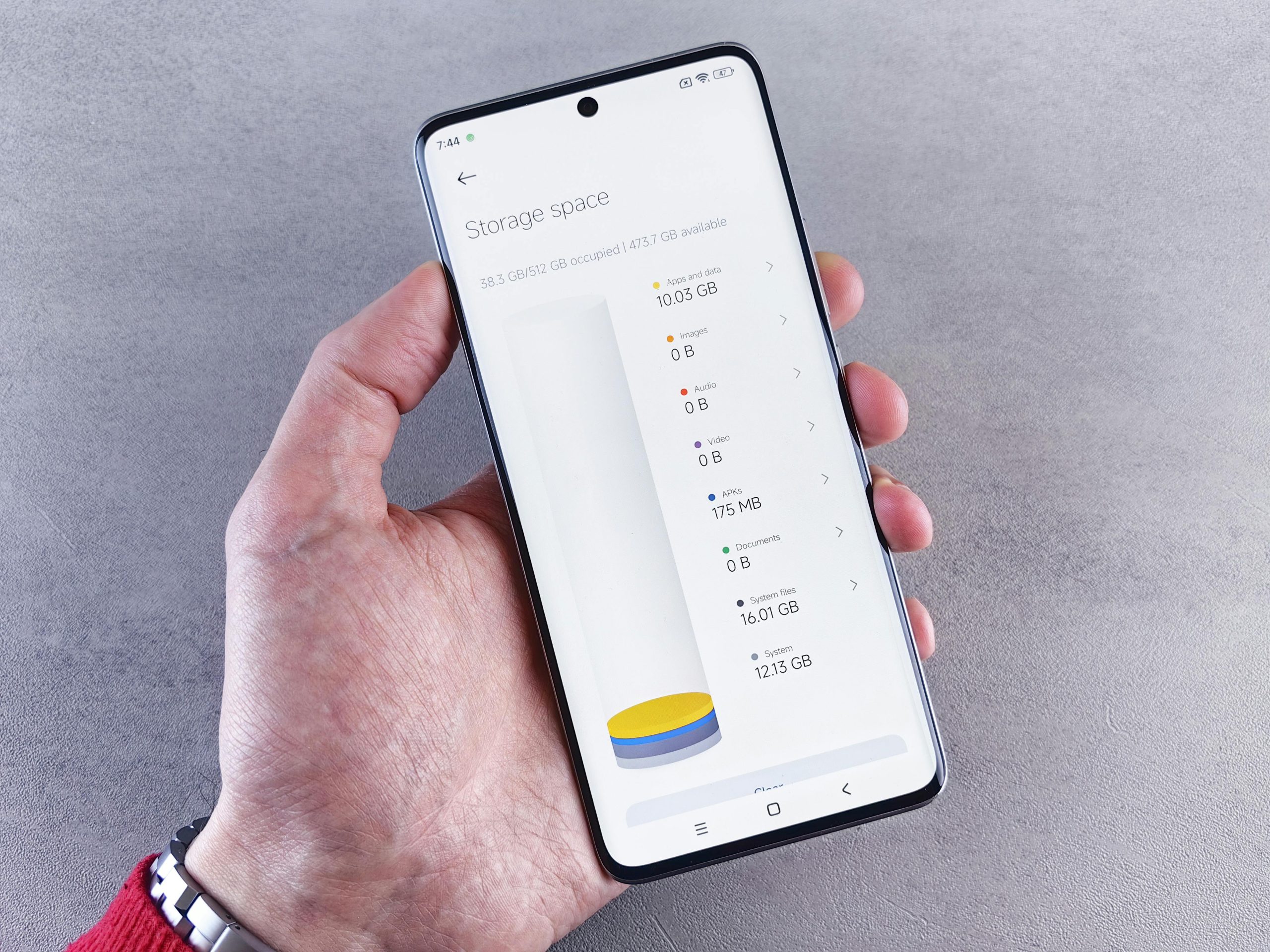
    When your phone doesn’t have much space left, things like getting updates, using the camera, how well apps run, and sometimes even receiving texts can be impacted. This is a down to earth look at getting more room on your smartphone. It shows you how to tidy things up without losing the stuff you want, instead of deleting everything all at once.

    Phone help people find that a lack of storage is usually something that happens gradually. Over a period of time, big videos, multiple copies of photos, things you get in messages, files you’ve downloaded, and extra files apps hold onto (the cache) all start to fill up your phone. Eventually it will feel full, even if you aren’t downloading many new apps.

    What usually fills phone storage first

    Pictures and videos, particularly if you’ve set your camera to take really detailed images, generally fill up your storage the fastest. What you’ve downloaded, music you’ve saved to listen to without data, things people have sent in messages, and pictures or videos from social media…these can all use a surprising amount of space. Most of the time, it isn’t a single enormous file causing the problem, but lots and lots of little bits and pieces throughout all your apps.

    People who are experts in getting digital life in order recommend starting with the storage checker that’s already on your phone or device. They will generally group everything by what type of thing it is and show you at a glance where you’re using the most space.

    How app cache affects phone storage cleanup

    App cache speeds things up for apps by saving bits of information briefly. However, it frequently gets way bigger than it should. Your browser, social media applications, shopping apps, and apps for videos or music are often keeping hold of files they don’t really need anymore. Getting rid of the app cache makes room on your phone, and it doesn’t uninstall the app.

    Typically, the people who help with technical problems recommend looking at which apps are using the most space before deleting all the cache. Yes, some of those temporary files will come back pretty quickly, but clearing them can be a good solution when you desperately need to make space on your phone.

    app cache and phone storage cleanup options on a smartphone

    Credit: Andrey Matveev / pexels

    Why duplicate media causes hidden clutter

    Lots of the space on your device gets taken up by having the same photos in more than one place, screenshots, those memes you’ve saved, and things you’ve downloaded again and again. Messaging apps and social media sites will frequently keep multiple copies of a photo or video in different places within their files. Gradually this makes it tricky to figure out what you can actually delete.

    People who are experts in managing files on phones and tablets frequently recommend beginning with screenshots, media sent to you by others, and downloads from a long time ago, because you probably don’t need these nearly as much as photos you took with your camera or documents for work.

    How cloud backup can help without removing access

    Cloud backup is all about getting copies of your pictures and files away from your phone or computer, but still letting you get to them whenever you want. Lots of people who are running out of room on their phone (but don’t want to lose their photos or important paperwork) find this really helpful.

    Tech help people generally say to make sure your files have safely gone to the backup before you get rid of them on your device. And if you regularly back things up, looking after your storage in the future will be a lot less complicated.

    Which apps and files are easiest to review safely

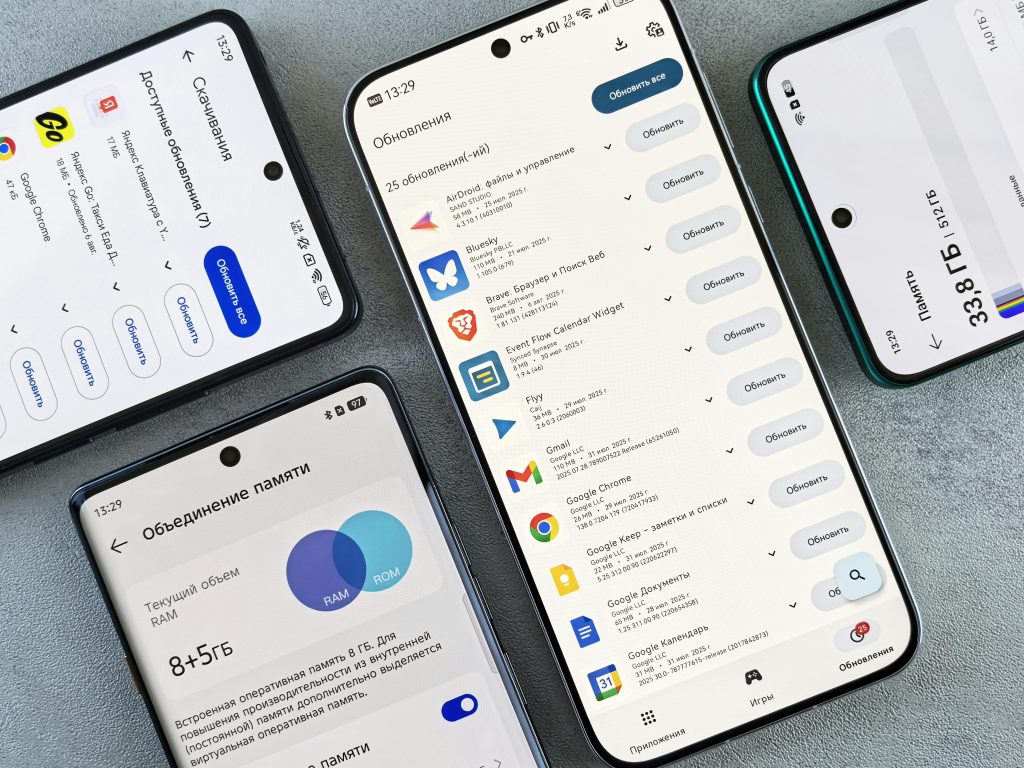
    A great first step to freeing up phone space is getting rid of apps you don’t use. They not only take up storage, but they can also be using data in the background. You should also look at big video files, downloads you have for use when you don’t have internet, old podcast episodes, and anything people have sent you in messages. Removing just a handful of really large things will generally give you more space than deleting lots of little ones.

    And to get the best result when cleaning up your phone’s storage, arrange things by how much space they are using, not just by when you got them. That way you’ll quickly find out what’s filling up your phone.

    Credit: Leeloo The First / Pexels

    How to keep storage from filling up again

    If you get some free space on your phone, the issue is less likely to happen again soon. You can stop photos and videos from automatically downloading in your text apps, go through your storage every month, and get rid of downloads you don’t need anymore, and this will stop things from getting messy. Many phones will even tell you what you could remove when your storage is getting full.

    Tech support people will tell you it’s much better to do a little bit of tidying up frequently, rather than a huge one very occasionally. These quick monthly looks at what’s on your phone will typically make using it easier and mean you won’t get as annoyed with it later.

    Frequently Asked Questions

    Q: Will clearing app cache delete personal files?
    A: Usually no. App cache mainly stores temporary data, though users should still check what each app includes before removing anything important.

    Q: What fills smartphone storage the fastest?
    A: Photos, videos, message attachments, offline downloads, and large apps are among the most common causes of low storage.

    Q: Is cloud backup useful for phone storage cleanup?
    A: Yes. Cloud backup can help users move copies of files off the device while keeping access to them later.

    Q: Should unused apps be deleted or just left alone?
    A: Deleting unused apps is often helpful because they take up space directly and may also store extra temporary files over time.

    Key Takeaway

    It’s generally better to do a bit of tidying up on your phone regularly, instead of deleting everything all at once, to get more space. App caches, copies of photos and videos, really big files, and apps you don’t use are what fill things up the most. If you get into the habit of cleaning out your phone’s storage fairly often, and you back things up to the cloud in a way you can depend on, looking after your phone will become much simpler as time goes on.

    [INTERNAL LINKING SUGGESTIONS]

    – Why Message Attachments Fill Phone Storage So Quickly
    – How to Manage Photo Backups Without Losing Important Files
    – Which Apps Usually Use the Most Space on a Smartphone

  • Why Laptop Overheating Happens During Normal Daily Use

    Why Laptop Overheating Happens During Normal Daily Use

    Laptops get hot even when you’re doing everyday things, not just when you’re gaming or doing a lot of photo or video editing. This piece will tell you the reasons for this heating up during your usual daily tasks, what situations make a laptop warmer, and what easy adjustments will typically both keep things running well and improve the flow of air inside.

    Tech support for the insides of computers frequently say that some heat is always part of how computers work. However, a lot of heat will decrease how steadily and quickly they run. Many laptops will automatically slow down when the inside gets too hot in order to protect the parts inside. It’s for this reason that you’ll frequently notice your computer slowing down at the same time it’s overheating.

    Why laptop overheating can happen during basic tasks

    Lots of folks think only really complex programs cause a computer to get hot. But actually, just doing typical things like using your browser, being on video calls, letting it charge, files uploading and downloading to the cloud, or installing improvements for your programs can steadily push your computer. It might appear to be doing nothing, but your laptop is likely handling a bunch of processes in the background all at the same time.

    Tech help people often say that current browsers take up a lot of memory and do a lot of calculations. Many browser windows open at once, websites full of pictures and videos, and browser add-ons that are running all build up heat while you’re doing what feels like normal things.

    How laptop airflow affects temperature control

    How a laptop gets rid of heat is largely down to the flow of air within it. Most laptops suck air in and push it out through openings at the bottom, along the edges or around where the screen connects. But if you use one on something soft for a long time, like a duvet, a sofa, a pillow or even on your knees, those openings get covered. Warm air then gets trapped inside and the laptop heats up fast.

    Laptop repair people will nearly always advise using your laptop on a firm, even surface. This makes sure the vents aren’t obstructed, and allows the cooling system to do its job of moving air around with much more success.

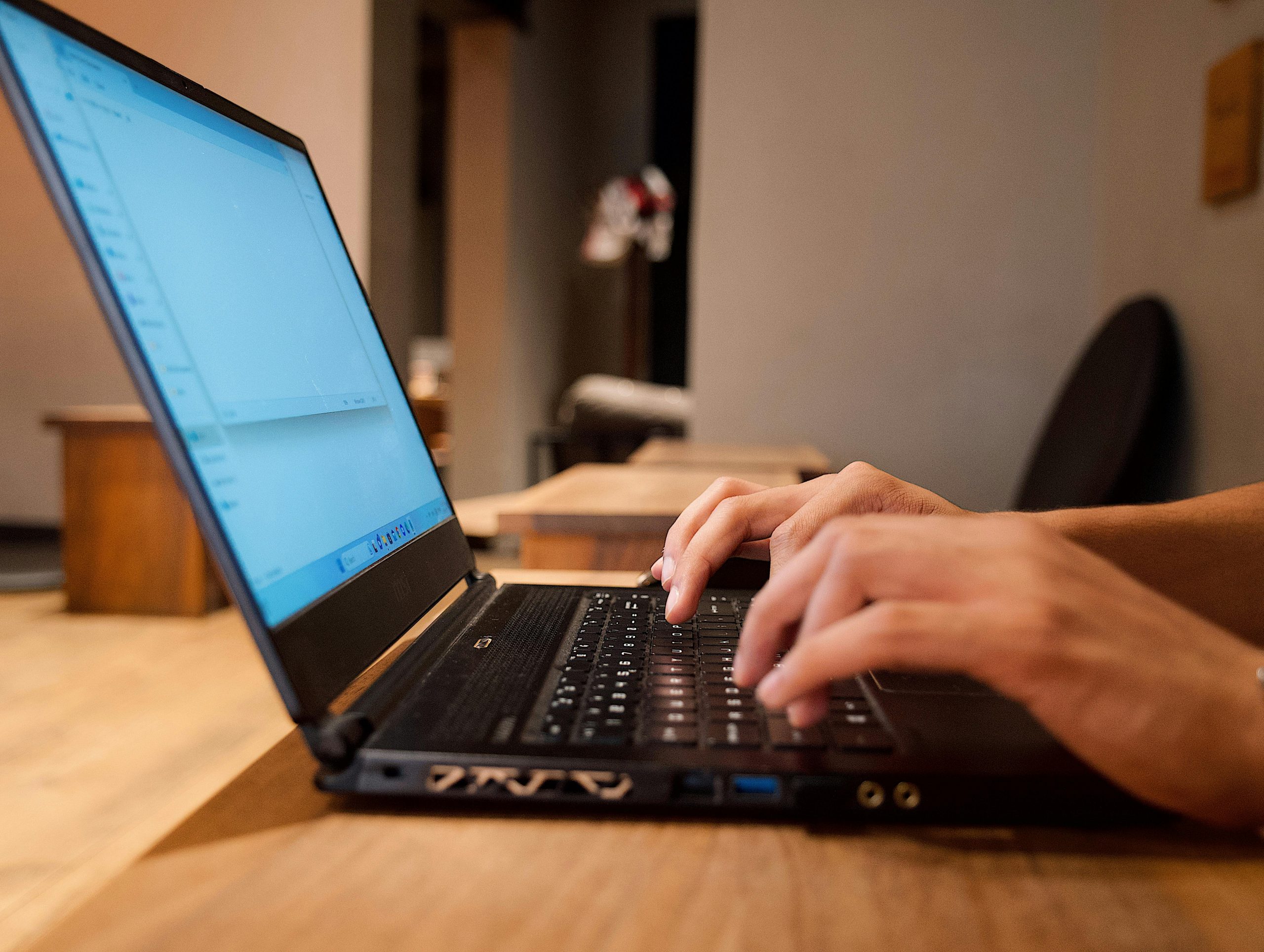
    laptop airflow improved by using a hard flat work surfaceCredit: Thirdman / Pexels

    Why charging and room temperature can raise device heat

    When you plug in your laptop, it often gets warmer because both the battery and the internal workings (the processor) are using energy at once. This warmth is much easier to detect in a hot room, particularly during the summer or if the room doesn’t have a lot of circulating air. So, a laptop that doesn’t get too hot in a cool office will likely feel a lot warmer if you use it in a hotter house.

    Tech support people at companies usually say to consider where you are before thinking something is seriously wrong with the device. Your laptop will heat up more quickly if it’s charging, getting an update installed, and in a warm room all at the same time.

    How dust buildup affects computer performance issues

    Over time, dust settles around the openings and inside the fans of your laptop, which restricts the air flow and makes the cooling system not work as well. As a result, the fan will probably turn on more often, make more noise and yet your laptop will still get hot. Often, people don’t realize this dust has accumulated until their computer starts to have problems fairly often.

    When you’re having heat issues, experts who fix computer hardware generally recommend cleaning the outside yourself and having someone professionally clean the inside. Just making sure the vents aren’t blocked is a really easy way to look after your laptop and can often help it perform better for much longer.

    What signs suggest overheating is affecting performance

    You’ll often notice problems with a very loud fan, apps being sluggish, delays in your voice or audio during calls, video suddenly getting choppy, or the part of your keyboard you rest your palms on getting quite hot. If things get really bad, your computer might lock up entirely, reboot on its own, or programs might just shut down for no apparent reason; it does this to take the strain off the bits inside.

    Engineers who build these machines say the system’s protection against heat is to avoid actual damage, but if it gets too hot over and over, it’s still going to be unpleasant to use and will diminish how good it feels. So keeping the heat in check is a good idea, even if your laptop isn’t broken yet.

    signs of laptop overheating including fan noise and a warm keyboard

    Credit: Castorly Stock / pexels

    Which simple habits usually help most

    You can frequently get a pretty good drop in temperature with just a few little adjustments. For instance, using your laptop on something solid, shutting browser pages you aren’t actually on, regularly rebooting the computer, making sure the cooling holes aren’t blocked, and not doing very demanding things while the battery is filling up when it’s already hot are all useful. They won’t magically fix every problem, but a lot of the time they make things more comfortable and make your laptop run more smoothly.

    Tech support people will tell you managing heat is best done as something you do all the time. Your laptop won’t need loads of complicated repair work every seven days, but it will do better with regular things you do to help the air circulate and the temperature fall, over the long run.

    Frequently Asked Questions

    Q: Is laptop overheating normal during video calls?
    A: It can be, especially if the laptop is charging or many tabs are open. Video calls often use both processing power and network activity for extended periods.

    Q: Does using a laptop on a bed make overheating worse?
    A: Yes. Soft surfaces can block vents and reduce laptop airflow, which makes heat build up more quickly.

    Q: Can dust really cause computer performance issues?
    A: Yes. Dust can reduce cooling efficiency, which may lead to more fan noise, more heat, and lower performance.

    Q: Should users worry if a laptop feels warm while charging?
    A: Some warmth is normal, but strong heat combined with noise, lag, or instability may suggest the system needs better airflow or maintenance.

    Key Takeaway

    Laptops usually get too hot because of a lot of little things adding up, not one big problem. How much you’re using your browser, if it’s plugged in, how well air can get to the laptop, the temperature of the room, and dust all make the laptop warmer and can slow things down. If you make a habit of letting air circulate and do some simple cleaning, you’ll likely find your laptop runs cooler and works more smoothly.

    [INTERNAL LINKING SUGGESTIONS]

    – How to Speed Up a Slow Laptop Without Replacing It
    – Why Too Many Browser Tabs Affect Laptop Performance
    – Simple Desk Setup Habits That Help Laptop Airflow

  • Why Home Wi-Fi Slows Down and What Usually Helps

    Why Home Wi-Fi Slows Down and What Usually Helps

    When your home Wi-Fi isn’t working well, video chats get choppy, websites are slow to appear, and things you’re watching online frequently stop and start. This piece will go over the reasons why your home Wi-Fi frequently becomes sluggish, what makes your Wi-Fi signal weak, and the fairly easy adjustments you can make to get it working better in most houses.

    Experts who deal with networks a lot say that the problem with your internet speed at home isn’t necessarily your internet company. Where you put the router, too many devices using the Wi-Fi at once, what your house is built from, and settings on the router that are old and need updating can all make things slower, even before the signal gets to your phone, laptop or television.

    Why home Wi-Fi slows down in busy households

    Nowadays, most houses have a lot more things linked up to the internet than they used to. You might have your phone, laptop, something for streaming, a smart television, a gaming machine, a camera and a smart speaker all going at the same time. If a lot of these all try to use your internet allowance at once, your home Wi-Fi will feel as though it’s slowed down, even if your internet package is good enough.

    Also, how well you connect can fluctuate depending on the time of day. Lots of things happening in the evening, like work meetings on the phone, files being saved to the cloud, downloading big files and watching things, can cause a brief overload. People who look at how home internet works often say you’re most aware of things slowing down when you’re doing several demanding things at once.

    How router placement affects home Wi-Fi signal strength

    Where you put your router actually has a bigger effect than most of us realize. If it’s tucked away in a cupboard, behind the TV, or down on the floor it’s likely to struggle to get a good signal all over your house. Thick walls, metal things, and mirrors all make the connection between your router and phones, laptops and so on, less reliable.

    Experts in getting things working at home will typically tell you to have the router in the middle of the house and out in the open if you can. Getting it up higher and away from big, solid obstacles will often solve the problem of a poor Wi-Fi signal in rooms close by.

    home Wi-Fi router placement improving weak Wi-Fi signal indoors
    Credit: Boitumelo / unsplash

    What causes a weak Wi-Fi signal in some rooms

    You usually get a poor Wi-Fi signal in back bedrooms, upstairs in an office, or in any room at the edges of the house that’s quite a distance from the router. How far away you are is important, but what your house is made of is equally so. Brick, concrete, tiled floors, and bulky appliances can all get in the way of the signal. What’s more, even the glass of a fish tank or big, heavy furniture can change how well Wi-Fi works in certain areas.

    Wireless experts will tell you that other electrical things nearby can cause problems. Specifically, microwaves, cordless phones, baby monitors, and lots of Wi-Fi networks in a block of flats can all fight for the same channels as your home Wi-Fi, making it less reliable. Because of this, your connection won’t just be slow, it will seem to cut out at random.

    Why older equipment can create internet speed issues

    Your router from a while back might not be able to handle how we use the internet now. Something that was fine for just looking at websites in the past will likely have trouble with things like streaming videos, all the data from a smart home, video calls, and backing stuff up to the cloud. And importantly, the older the ‘instructions’ the router uses (its firmware) the less consistently and safely it will work.

    Tech support people generally suggest first looking to see if your router’s software is the latest version and if the router itself can still do everything your household requires. You can have a very speedy internet service, but a really old router can slow things down and become the limiting factor for how fast things actually feel.

    Which simple changes usually help most

    Often the best solutions are really straightforward. Just turning your modem and router off and then back on will usually get rid of short-term connection problems. If you put the router somewhere with a better signal, you’ll get a stronger Wi-Fi range. And taking devices that aren’t being used off the network, particularly older phones, tablets, or streaming boxes that connect on their own, will lower the amount of data going on in the background.

    If you can, it’s good to do things that use a lot of internet at different times; you might plan big downloads or backing up your videos for when you aren’t working. For desktops, TVs and gaming consoles, network experts advise using an Ethernet cable instead of Wi-Fi when you absolutely need a fast and reliable connection.

    checking home Wi-Fi and internet speed issues with connected devices
    Credit: Giang Vu / unsplash

    When the internet provider may not be the main problem

    We often quickly blame the internet company when things go wrong, but the trouble isn’t necessarily with them. If you have a great signal right by the router but the connection is bad only in particular rooms, the problem is likely the WiFi’s reach within your home, not the service coming into it. And if the slow speeds happen just at specific times, or on only one computer, phone or tablet, the cause is probably something inside your walls.

    Because of this, internet help desks will commonly ask you to try a lot of different devices, in a lot of different spots around your house, before you declare the slowdown’s source. This way you can figure out if the problem is with your provider, your router, or that one specific device.

    Frequently Asked Questions

    Q: Why does home Wi-Fi work well in one room but not another?
    A: Distance, thick walls, furniture, and interference can all weaken a signal in certain parts of a home. Router placement often makes a major difference.

    Q: Does restarting the router really help?
    A: Yes, restarting can clear temporary network problems and improve stability. It is a simple step that often helps before deeper troubleshooting begins.

    Q: Can too many devices slow down home Wi-Fi?
    A: Yes, especially when several devices stream video, sync files, or download updates at the same time. Busy households often see more internet speed issues during peak hours.

    Q: What is the easiest way to reduce a weak Wi-Fi signal?
    A: Moving the router to a more open, central location is often the simplest first step. Keeping it away from large obstacles can improve coverage quickly.

    Key Takeaway

    Most of the time when your home Wi-Fi is acting up, it’s because of little things with how it’s set up, not some big breakdown. Where you’ve put the router, lots of devices being in the same spot, areas of the house where the signal is already pretty faint, and how old your equipment is are all things that impact how well it works every day. If you thoughtfully look at those simple things, you can normally get a better Wi-Fi connection, and solve the usual problems with your internet being slow, without doing anything really complicated.

    [INTERNAL LINKING SUGGESTIONS]
    – How Router Placement Changes Wi-Fi Coverage
    – Common Reasons Video Calls Lag on Home Internet
    – What Internet Speeds Different Households Usually Need

  • How to Speed Up a Slow Laptop Without Replacing It

    How to Speed Up a Slow Laptop Without Replacing It

    You usually start to look at getting a sluggish laptop to work faster once doing things you do every day becomes irritating. This guide will tell you what generally causes laptops to get slower and how to make them speed up, without you needing to buy a new one.

    Tech support people will frequently say that how old the laptop is isn’t the whole story. Programs that start automatically, a full hard drive, old versions of software, a browser with too many things going on, and the laptop getting too hot are all common ways a laptop can lose speed, even if it’s still good for several more years.

    Why laptops become slower over time

    Your laptop doesn’t usually get slow from just one thing happening. Instead, it typically gets slower and slower as you collect more files, have more programs start up when you turn it on, and the computer does more things ‘behind the scenes’. Things like temporary files, downloads you’ve had for ages and your files being backed up to the cloud all make the computer work harder.

    Tech people find a lot of the time that people don’t understand how many things are running in the background. Programs you use for messages, apps for your cloud storage, services that automatically update things, and add-ons for your browser all use up memory even before you’ve started doing your own work.

    How startup programs affect laptop performance

    A really easy thing to do to get a sluggish laptop working faster is to have fewer programs begin when you turn it on. Lots of computers automatically start chatting programs, things for music or video, little helper applications, and those that look for updates. This makes the computer take longer to start, and it uses up power from the computer before you are even able to use it.

    Switching off programs you don’t need at startup doesn’t normally get rid of the program altogether, it just prevents it from beginning as soon as you power up. Tech help people generally suggest you leave your security programs running, but you can turn off other things you can open later when you actually want them.

    speed up a slow laptop by reducing startup programs
    Credit: Daniil Komov / pexels

    Why storage cleanup matters more than many users expect

    When your hard drive is almost full, everything just feels sluggish. Big downloads, copies of files you already have, programs you used to install, and videos or pictures you don’t look at anymore slowly eat up space. You could get rid of files, or you could put them on something like cloud storage or a USB drive.

    People who work on computers for a living will generally tell you to look at your biggest folders at first. Your Downloads, what’s on your Desktop, and old video collections are often much larger than you realize. And don’t forget to empty your Recycle Bin, because files you’ve deleted are still using up space on your drive until that’s done.

    What browser habits can do to a laptop

    These days, your browser is often what’s really making your computer feel sluggish. Lots of tabs open, websites with lots of pictures and video, and a bunch of extra add-ons can all soak up a lot of your computer’s memory. Even if you have a quite a good laptop, it’ll start feeling slow if the browser is doing too much for too long.

    If you want to work faster on your computer, people who are good at being productive with digital tools recommend shutting tabs you aren’t using, deleting extensions you don’t need anymore, and restarting your browser at least once a day. And to help pages load properly, or if they’re doing odd things, you should occasionally erase the browser’s stored cache.

    How updates and restarts help keep systems stable

    Updates to your operating system commonly fix errors, improve security, and make things run faster. If you wait too long with those updates, your laptop might become glitchy or sluggish. And restarting is important, because as you use things, your computer’s short-term memory gets fuller and fuller.

    Software help desks suggest a proper restart rather than simply shutting the screen for multiple days. A complete restart allows the computer to properly begin all programs again and to install things that are meant to be done during maintenance.

    speed up a slow laptop with updates and restart habits
    Credit: Clint Patterson / unsplash

    When heat and dust become hidden performance problems

    Laptops often get slower when they get hot. Many of them do this on purpose to stop the stuff inside from being damaged by the heat. And a lot of dust collecting around the little holes where air gets in and out (the vents) makes this overheating even more of a problem. Using a laptop on something soft like your bed or the sofa can also cut off the air it needs.

    Laptop repair people usually say to use your laptop on a hard surface, be careful when you clean the vents, and if you can, don’t use it in really hot places. Just letting the air flow around the laptop better can really help it keep running at the same speed.

    Frequently Asked Questions

    Q: Will deleting files really speed up a slow laptop?
    A: It can help, especially when storage is nearly full. Storage cleanup gives the system more room to manage updates, temporary files, and normal tasks.

    Q: How many startup programs are too many?
    A: There is no single number, but unnecessary startup programs often affect boot time and laptop performance. Security tools should stay active, while optional apps can usually be delayed.

    Q: Does restarting help more than sleep mode?
    A: Yes, restarting clears temporary memory use and resets background processes. Sleep mode is useful, but it does not fully refresh the system.

    Q: Why does a browser make a laptop feel slow?
    A: Modern browsers use a lot of memory, especially with many tabs, extensions, and media-heavy pages open at once.

    Key Takeaway

    Laptops get slow over time, but generally lots of little adjustments are what you need to make them faster, not a single big one. How quickly your laptop runs is impacted by things like what programs automatically start when you turn it on, how much space you have on your drive, what you do in your web browser, whether everything is up to date, and how well air can circulate to keep it cool. If you deal with these things frequently, you’ll often be able to speed up a sluggish laptop and get more life out of it.

    [INTERNAL LINKING SUGGESTIONS]
    – Why Laptops Overheat During Everyday Tasks
    – How to Organize Computer Files More Efficiently
    – Common Browser Settings That Affect Performance

  • How to Improve Smartphone Battery Life With Simple Daily Settings

    How to Improve Smartphone Battery Life With Simple Daily Settings

    How long your phone holds a charge impacts your work, trips, and keeping in touch with people. This guide will show you which settings and habits typically use up your smartphone battery, and how to get rid of battery drain that isn’t important to you, all without changing the way you actually use the phone.

    What your battery does is something tech analysts generally say is due to both the phone itself and what you do with it. And phone software experts add that how apps are used, your screen’s brightness, using wifi or mobile data, and how you charge the phone are all things that influence how much time you get from a single charge.

    Why smartphone battery life drops faster than expected

    People often think a battery that doesn’t hold a charge is because the phone is old, but actually, how you use the phone each day is usually more important. Things like a very bright screen, having location services on all the time, lots of apps refreshing in the background, and a stream of notifications will run the battery down quicker than you might think.

    Wireless capabilities are also a factor. Bluetooth, using 5G, a hotspot, and your phone continuously searching for WiFi all contribute to power being used even when you aren’t actively doing anything. Phone designers typically say to look at what’s connected and only have what you need turned on, instead of having everything going all day long.

    smartphone battery life controls including brightness and wireless settings
    Credit: Andrey Matveev/ pexels

    How screen settings can improve smartphone battery life

    Your phone’s screen uses a lot of battery. You can get more life from your phone’s battery quickly by dimming the screen, letting the screen automatically adjust its brightness, and shortening how long the screen stays on before turning off. And on phones with OLED screens, dark mode could help too, as black parts of the screen need less energy.

    Those who study how people use technology (accessibility experts) frequently say to find a good point between being able to see the screen and saving battery. You really don’t need the screen at full brightness inside, and even just a little adjustment throughout the day will reduce how much battery is used.

    Which background app settings matter most

    Apps doing things in the background are a big reason your battery dies quickly. They’ll update information, find out where you are, tell you things, or send your data to the internet all while you aren’t actually using the app. Your phone’s settings and the way they show battery usage will tell you which apps are taking the most energy.

    Security experts on phones suggest restricting what apps can do while in the background if they don’t need to. Social media, shopping, and weather apps, for example, will go on working at it unless you deliberately change their settings.

    Also, email popping up as it arrives and phones that automatically update very often both use a lot of battery. If you don’t need to be updated immediately, you’ll probably find your battery lasts longer if you have your phone update less frequently.

    How charging habits affect phone battery health

    Looking after how you charge your phone will help its battery stay in good condition for longer. Phone battery experts generally say you shouldn’t let it get very hot, you should take off bulky cases if the phone warms up during charging, and you should only use chargers you can rely on that are designed to give your phone the amount of power it needs.

    Constantly having your battery at 100% or letting it drain to empty a lot are both hard on it. Luckily, a lot of phone companies these days have clever charging programs which are slower overnight and help your battery last. Switching these on can improve how you use your phone every day and also how well it works in the future.

    smartphone battery life and phone battery health during indoor charging
    Credit: Stanley Ng/ pexels

    When battery saver mode is worth using

    Battery saver mode will make your phone a little less fast, but it’s generally a good thing. It does this by restricting what’s happening on your phone in the background, slowing down how often the screen updates, checking your location less frequently, and making animations quicker to finish. All of this helps your battery last longer when you can’t plug it in.

    Phone support people frequently suggest switching battery saver on at the beginning of a trip or a long day at work, rather than waiting for the battery to be nearly empty. Doing it sooner will slow the battery losing power before you’re actually in trouble.

    Other small steps that help each day

    When your phone’s software is current, it’s better at managing how it uses electricity, and updates frequently have solutions for battery problems. You don’t necessarily have to close every app, but if you reboot your phone now and then, it gets rid of little glitches.

    Things like widgets, wallpapers that are actually moving, and continuously letting apps know where you are all use more power. So, switching off things you don’t use daily is a really simple way to get more time out of your phone’s battery, and you don’t have to spend any money on it.

    Frequently Asked Questions

    Q: Does dark mode really improve smartphone battery life?
    A: On phones with OLED displays, dark mode can help reduce power use because darker pixels may consume less energy. The effect is usually moderate, but it can still help across a full day.

    Q: Is fast charging bad for phone battery health?
    A: Fast charging itself is not always harmful when supported by the device. Heat is the bigger concern, so keeping the phone cool during charging matters more.

    Q: Which apps usually drain battery the most?
    A: Social media, navigation, video streaming, and apps with constant background app activity often use the most battery. Battery settings can usually show exact app usage.

    Q: Should users charge a phone to 100 percent every time?
    A: Occasional full charging is normal, but many battery experts suggest avoiding constant high-heat full charging when possible. Optimized charging settings can help manage that automatically.

    Key Takeaway

    You’ll generally get more from your phone’s battery by making lots of little changes each day, not by doing one big thing to solve the problem. How bright your screen is, what apps are doing stuff in the background, the way you charge your phone, and using any battery saving features are all involved. If you check these things fairly often, you’ll probably find your battery lasts longer and stays in good condition for a longer period of time.

    [INTERNAL LINKING SUGGESTIONS]
    – How to Free Up Storage Space on a Smartphone
    – Why Some Apps Drain More Battery Than Others
    – How to Manage Background App Permissions on Android and iPhone